
The Intake Form process is designed to bridge the gap between gathering information and generating a final document. By sending a digital questionnaire directly to a Filler, you eliminate the need for manual data entry and back-and-forth emails.
Once the Filler completes the form, the data flows back into Smarter Drafter Pro, allowing you to review and update any inputs and generate a perfectly formatted document in seconds.
Intakes can be sent in two ways:
-
Send with pre-filled answers: the intake form can be sent to the recipient with known data already pre-filled saving them time in manually entering all data. Smarter Drafters Matter Record can automatically populate any known data for a selected matter.
- Send with blank answers: in the scenario where the form should be left empty for the recipient to fill in. No existing known data will be populated.
Sending with pre-filled answers
1. Navigate to Form Library, locate the respective form and click on Send instruction-taking form
2. Enter the Submission name, Access to the submission and keep the Send with pre-filled answers selection.
Select the matter source and ID (optional) - Choosing the matter with pre-filled answers option will auto-populate any known data.
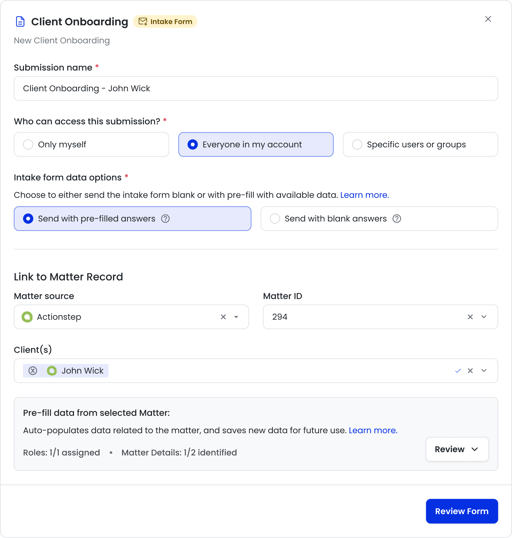
3. Click Review Form
4. The intake form will appear to view all fields that will be sent to the recipient. Auto populated data can be viewed, edited and any empty known fields can be entered.
5. Once ready, click Send Intake
6. Recipient details will need to be entered. Searching recipients will access your Contacts and Records created and auto populate the Given Name, Surname and Email Address fields if the data exists.
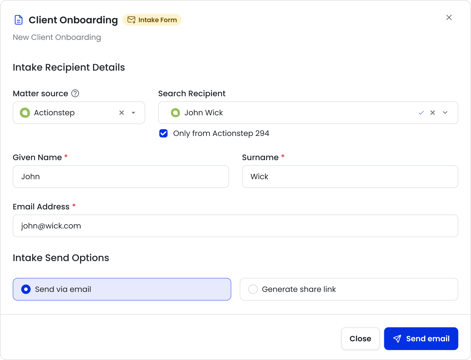
7. There are two options to send the intake, select the most appropriate.
Sending via email - this will utilise the predefined email template for sending intakes (see Intake Email Templates for more details)
Generate share link - a link to the intake for the recipient to open will be created for you to share.
Intake is now shared with the recipient to access the intake form.
Sending with blank answers
1. Navigate to Form Library, locate the respective form and click on Send instruction-taking form
2. Enter the Submission name, Access to the submission and select Send with blank answers
Select the matter source and ID (optional) - when sending with blank answers no known data will be auto-populated into the form.
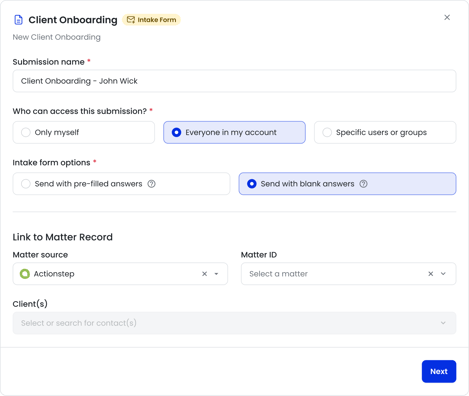
3. Click Next
4. Recipient details will need to be entered. Searching recipients will access your Contacts and Records created and auto populate the Given Name, Surname and Email Address fields if the data exists.
5. There are two options to send the intake, select the most appropriate.
Sending via email - this will utilise the predefined email template for sending intakes (see Intake Email Templates for more details)
Generate share link - a link to the intake for the recipient to open will be created for you to share.
Intake is now shared with the recipient to access the intake form.
Reviewing completed Intake Form
Once a recipient has completed the intake form, you will be notified via email with a link to the submission.
The submission can then be viewed, and finalised for submissions.
Where an intake form is tied to a document template, a document will be generated as an outcome of the submission.
Related Articles
🔗Completing an Intake Form as a Recipient
Common Issues & Solutions
Do recipients need a Smarter Drafter Pro account to access the sent intake form?
No. Recipients can access and complete the intake form via a secure, private link without needing to create an account or log in to Smarter Drafter.
I can't see any pre-populated data in my intake form
Ensure Send with pre-filled answers is selected and a matter source + matter ID is selected. Check if there are any records assigned. If there are no records assigned, the matter may not have any previous data.