
Your firm’s Managed Content subscription gives you access to Smarter Drafter’s maintained forms, precedents and court forms. Admins control access in two places: Account > Managed Content sets which folders and forms are available across your firm, and permission sets control which users can see them. A user needs both to draft from a managed form, in the Form Library, iManage, the MCP Server or the public APIs.
Use these settings to exclude managed forms your firm already has its own version of, such as an NDA or cost agreement, so drafters never see two versions of the same document. To learn how drafters use managed forms, see Managed Content.
How to
Choose which managed content is available
1. Go to Account and open the Managed Content tab.
2. Select one of the three options:
-
No access: no managed content is available to anyone in your firm. Your previous selections are kept.
-
Enable all forms: every form in your subscription is available, including new forms Smarter Drafter publishes.
-
Select specific forms: only the folders and forms you enable are available.
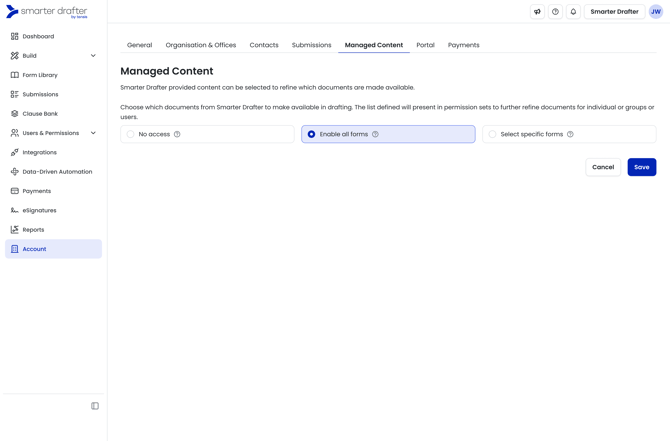
3. If you selected Select specific forms, find the content using the folder tree, the Folders and All forms views, or search.
4. To change a whole folder and its sub-folders, click the folder’s more options icon and select Enable all forms or Disable all forms.
5. To change a single form, use the toggle on its row.
6. To change several at once, select the rows and click Enable forms or Disable forms.
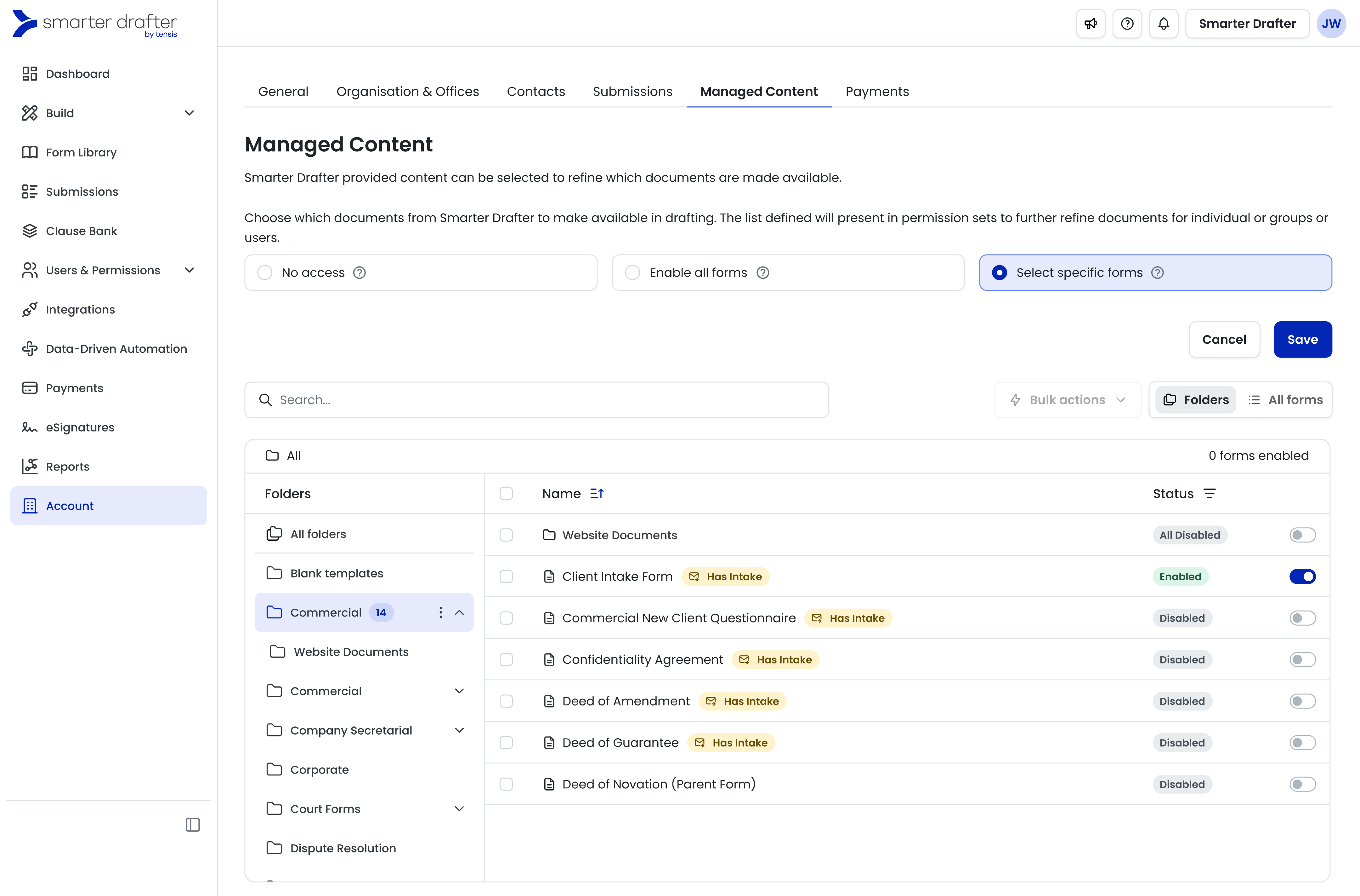
7. Check the forms enabled count above the table, then click Save.
TIP: New forms Smarter Drafter publishes follow their folder’s setting. If a folder is All Enabled, new forms added to it are enabled automatically.
Choose who can see managed content
1. Go to Users & Permissions > Permission Sets and open the permission set you want to change.
2. Open the Managed Content tab.
3. Select All forms to give users in this set access to the managed content enabled for your firm, or No access to hide it.
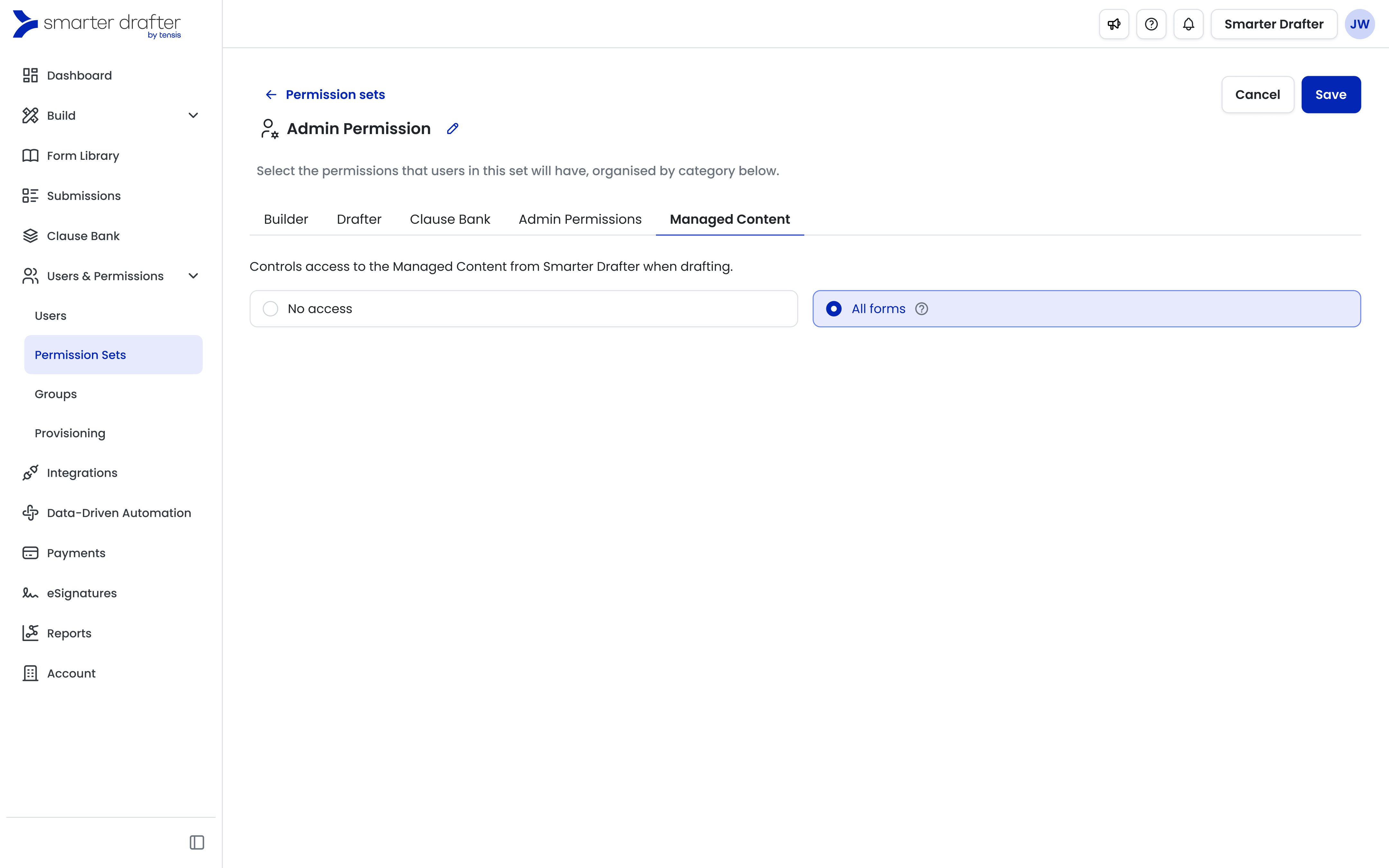
4. Click Save.
5. Repeat for each permission set that needs access.
IMPORTANT: For firms that used Smarter Drafter before Managed Content was released, every permission set starts at No access. Drafters won’t see any managed content until you update their permission sets, even if forms are enabled in Account > Managed Content.
Common questions
Q: Why can’t I see the Managed Content tab under Account?
A: The tab only appears when your firm has a Managed Content subscription, and you need the Account admin permission to access it. Contact the Smarter Drafter team to add Managed Content to your plan.
Q: I’ve enabled forms, but drafters can’t see them. Why?
A: Check the drafters’ permission sets. The Managed Content tab must be set to All forms.
Q: Can I give users access to specific managed forms only?
A: Not per user. Permission sets give access to all managed content enabled for your firm, or none. Use Account > Managed Content to limit which forms are available.
Q: What happens to existing submissions if I disable a form?
A: Existing submissions aren’t deleted and can still be opened. The form is removed from users’ favourites and no longer appears for new drafting.
Q: Do managed forms appear in Portal embed codes?
A: No. Managed forms are available in the Form Library, the iManage integration, the MCP Server and the public APIs only.