Skip to content
  • There are no suggestions because the search field is empty.

How to Create a New Form

Learn how to create a new form in Smarter Drafter Pro.

Creating a new form allows you to capture data for automation processes. This guide will walk you through the steps to create a new form and place it in the appropriate folder.

There are multiple ways to create a new form. 

Creating a form from the Dashboard.

  1. Go to the Dashboard.
  2. Click Build a new form


Creating a form from Build > Forms

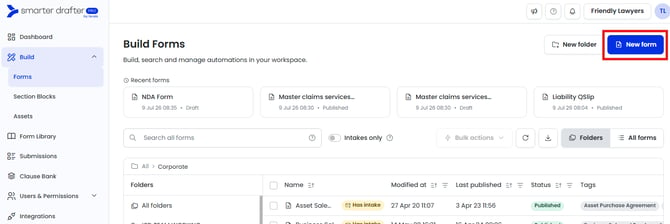
  1. Go to Build > Forms in the left-hand side navigation.
  2. Click New form.

Deciding how to start your form

After clicking New form (via either pathway), you will see the popup below.

  1. Decide whether you'd like to start your form 'from scratch' or using Fast Start AI
    1. From scratch: you start with a blank canvas, add sections and fields and connect your document template for automation.
    2. Using AI: you upload a MS Word document and AI will create a first draft of your form for you.

Starting a form 'From Scratch'

  1. Click From scratch in the Build a new form pop up.
  2. In the next New Form pop-up, enter the name for your new form according to your organisation's naming conventions.
    1. The Form alias (a unique identifier for your form_ will automatically pre-fill based on your Form name.
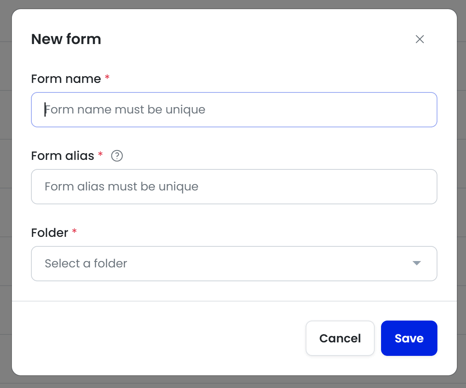
  3. Choose the appropriate Folder/Subfolder where the form will reside. Ensure this aligns with your organisation’s folder structure.
  4. Click Save.