
Instead of starting from a blank form, upload your Word template and Co-Builder proposes the form for you. It proposes the sections, fields, options, logic, calculations, conditional rules and repeats the document needs, each linked to where it appears in the document, including headers, footers and tables that are easy to miss by hand.
- Proposes your form structure: sections, fields, options, logic, calculations, conditional rules and repeats.
- Links every item to the document, so you can check each one against the source.
- Looks where it's easy to miss by hand: headers, footers, tables and repeated placeholders.
- Keeps you in control: remove items or ask for changes in chat, and nothing is built until you click Create form.
For the most accurate proposal, mark up your template first. Co-Builder can analyse a completed precedent, but it has to infer what varies, so expect a less complete proposal and more to review.
Starting a form from a template is in beta. Co-Builder builds the foundation of your form, not the template coding, and it can make mistakes. Review every proposed item before creating the form, and test your form as you normally would. Document generation is unchanged, so a published form still produces the same document from the same answers every time.
We're improving this feature regularly. Use the Feedback button on the Review page to tell us what worked and what didn't.
How to
Start
1. Navigate to Build > Forms and click New Form. You can also select Build New Form from the Dashboard.
2. Select Using Co-Builder AI.
3. Upload your Word template (.docx only).TIP: For the most accurate proposal, prepare your template first. See Preparing a Template for Co-Builder.
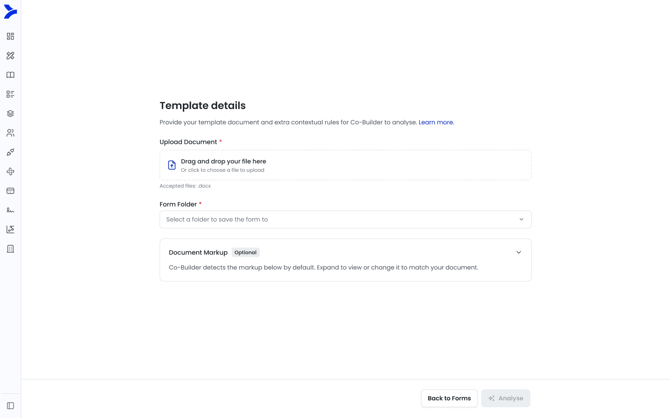
4. Choose the Form folder. If you started from inside a folder, it's already selected.
5. If your template uses its own markup convention, open Document Markup, select Define my own syntax for that type, and describe your syntax with an example.
6. Click Analyse. Co-Builder creates the form in your folder and names it from the document.
Analyse
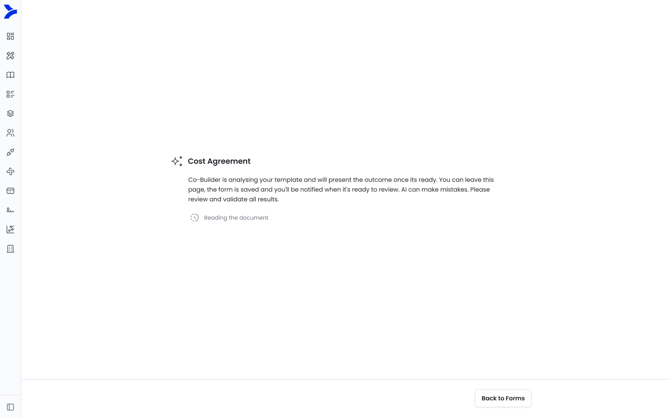
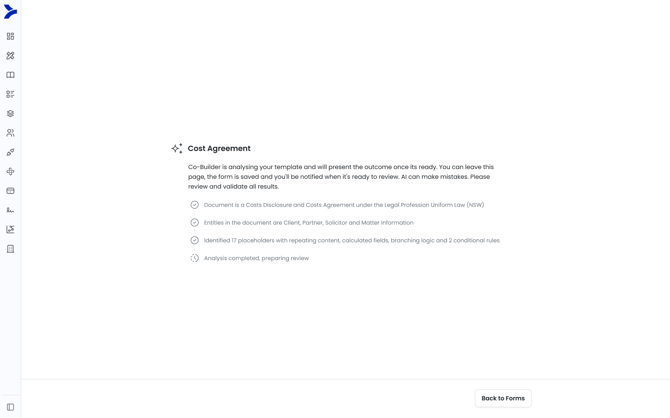
7. Co-Builder shows each step of its analysis as it completes. You can click Back to Forms at any time. Analysis continues in the background.
Review
8. When analysis finishes, the Review page opens. Co-Builder summarises its proposal in the chat.
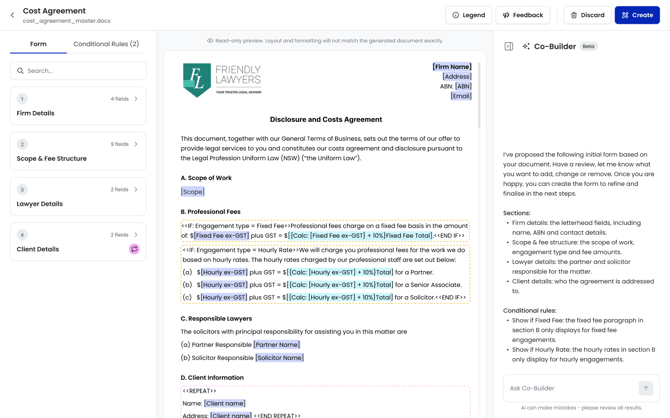
9. Review the proposed form in the left panel. Sections are under Form and conditional rules are under Conditional Rules. Expand a section to see its fields and the reasoning behind it.
10. Click a field or rule to jump to it in the document, or click a highlight in the document to find its item in the panel. Open the Legend to see what each highlight means.
TIP: A field used more than once shows a count, such as "3 in document". Select the field and use the arrows to step through each instance.
11. Remove anything you don't need using the X, or Remove section for a whole section. Removed items are struck through and can be brought back with Restore.
12. For any other change, ask Co-Builder in the chat, for example "make Fee type a select field with Fixed Fee and Hourly Rate". Co-Builder proposes a plan. Select Apply, Revise or Discard. Your changes save automatically.
Create
13. Click Create form.
14. Confirm. If any items have validation issues, the confirmation shows how many. Return to fix them, or continue and fix them in the form.
15. The form opens in Draft with your document on the Documents tab. Your Co-Builder conversation continues, so you can keep building.
IMPORTANT: Once the form is created, you can't return to the Review page.
Co-Builder capabilities when starting from an uploaded template
Co-Builder can:
- Analyse marked-up templates, using the default markup or your own syntax
- Analyse completed precedents, with lower accuracy than a marked-up template
- Find variables in the body, headers, footers and tables
- Propose sections, including page breaks, repeats and section-level logic
- Propose fields with their type, select options, logic and calculations
- Propose conditional rules for conditional content
- Suggest logic, calculations and conditional rules that aren't marked up
- Propose a field once when it appears multiple times, with every instance recorded
- Change the proposal through chat, including importing section blocks
- Apply contact and user mapping through chat
Co-Builder cannot yet:
- Code the template
- Proactively define sections as contact or user mapping
- Proactively suggest section blocks
- Upload more than one template at a time. At this stage only a single template can be uploaded
- Exclude a single instance of a field in the document
- Add a field by selecting text in the document. Ask Co-Builder in the chat instead.
Common questions
Q: Can I leave while Co-Builder analyses my template?
A: Yes. Analysis continues in the background. Open the form from Build > Forms to return, and it opens the Analyse or Review page depending on progress.
Q: Can I upload a completed precedent?
A: Yes, but accuracy is lower because Co-Builder has to infer what varies. For the best results, mark up the template first. See Preparing a Template for Co-Builder.
Q: What if Co-Builder finds nothing, or the analysis fails?
A: You can retry once. If it fails again, create the form from scratch. Your document is added to the form's Documents tab.
Q: Why wasn't something in my document proposed?
A: Co-Builder only proposes unmarked items it's confident about, and notes anything uncertain in its summary. Ask Co-Builder to add it in the chat.
Q: What does "Not in document" mean?
A: The item was added through chat, so it has no location in the document. It's still created with the form.
Q: Is my data used to train the AI?
A: No. Smarter Drafter uses Microsoft Azure OpenAI, which guarantees this. For information security queries, contact our support team.