
Eliminate manual data entry and ensure accuracy by syncing Smarter Drafter Pro with your iManage environment. By mapping your iManage custom fields to our system, Smarter Drafter will automatically detect the Matter ID and Source whenever you launch a form directly from an iManage workspace.
How it Works
Once configured, when a Drafter opens Smarter Drafter from a specific folder within an iManage Matter, our system reads the metadata from that workspace. It then automatically selects the correct Matter Source and populates the Matter ID, speeding up the process.
Setup Steps
To set this up, you must have permission to access the Integrations page and setup the iManage integration (see help article for more details).
1. Navigate to Integrations in Smarter Drafter Pro.
2. Locate iManage under the "Document Management" category. Ensure the toggle is set to Enabled and you have authenticated your account.
3. In the iManage dialog, locate the Matter Source dropdown.
This list displays Practice Management Systems (PMS) currently enabled in your Smarter Drafter account.
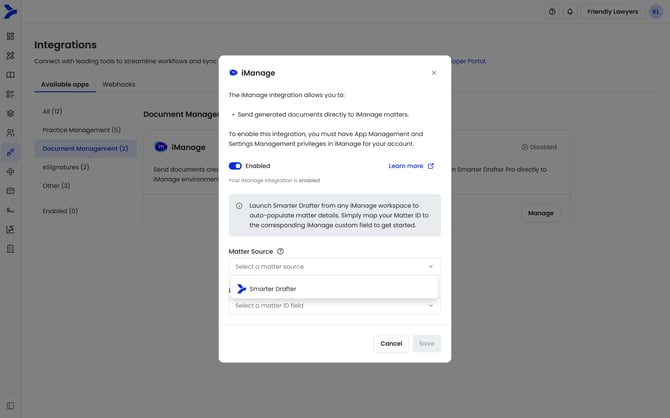
4. Select the Link iManage Matter ID Field, and choose the relevant custom field that you use for matter ID.
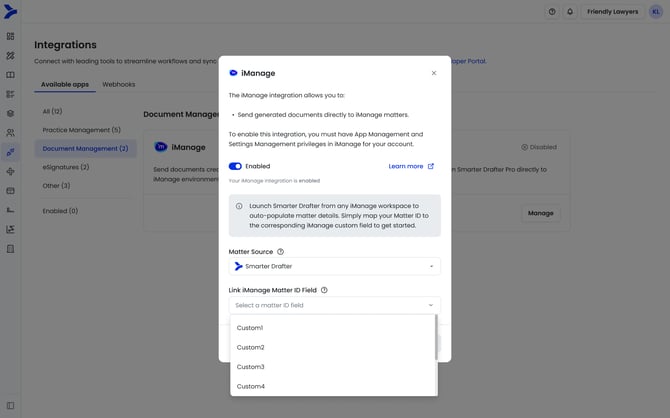
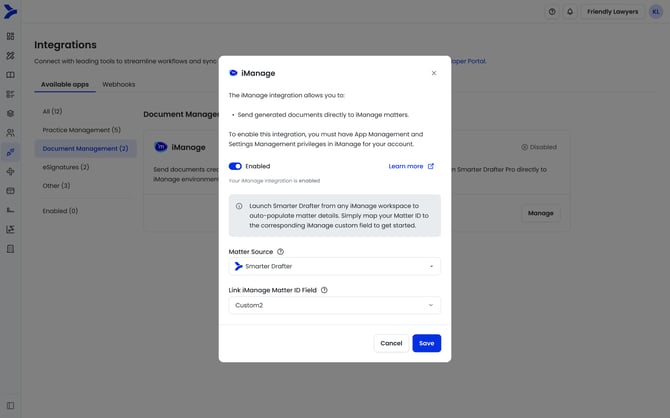
5. Save to enable the configuration. At this point, all Smarter Drafter forms started from iManage will use the Matter Source and look for the Matter ID field using the relevant matter in iManage custom field.
Key Requirements for Successful Matching
For the auto-population to work seamlessly, please keep the following rules in mind:
-
Exact Match Only: The ID in the iManage custom field must be an exact match to the ID in your PMS.
-
No Extra Text: We cannot "strip" extra characters. Only the matter ID as it appears in the PMS should be in the custom field.
-
Case Sensitivity: Matching is not case-sensitive (e.g.,
MATTER-01andmatter-01will be treated as the same ID).