
Smarter Drafters iManage Work integration allows you to automatically save documents generated directly to your iManage Work folders. By connecting these systems, you remove the need to manually download files and re-upload them to your Document Management System (DMS) after a workflow is completed.
This integration ensures that finalised documents are stored securely and organised according to your existing filing structures.
Key capabilities:
-
Send generated documents from Smarter Drafter directly to iManage Work
- Access Smarter Drafter within iManage Work to draft documents and automatically save the document in the iManage folder (see help article)
- Automatically pull in the context of the matter ID in iManage (see help article)
The following article covers the steps to enable iManage within Smarter Drafter and the necessary configurations to setup in iManage to allow Smarter Drafter the required permissions to read and write to iManage.
Enable iManage in Smarter Drafter
Integrations in Smarter Drafter allows iManage Cloud and On-prem/Legacy Cloud to be enabled.
iManage Cloud
1. Navigate to Integrations and search for iManage
2. Click on Manage and Enable
3. Ensure iManage cloud is selected
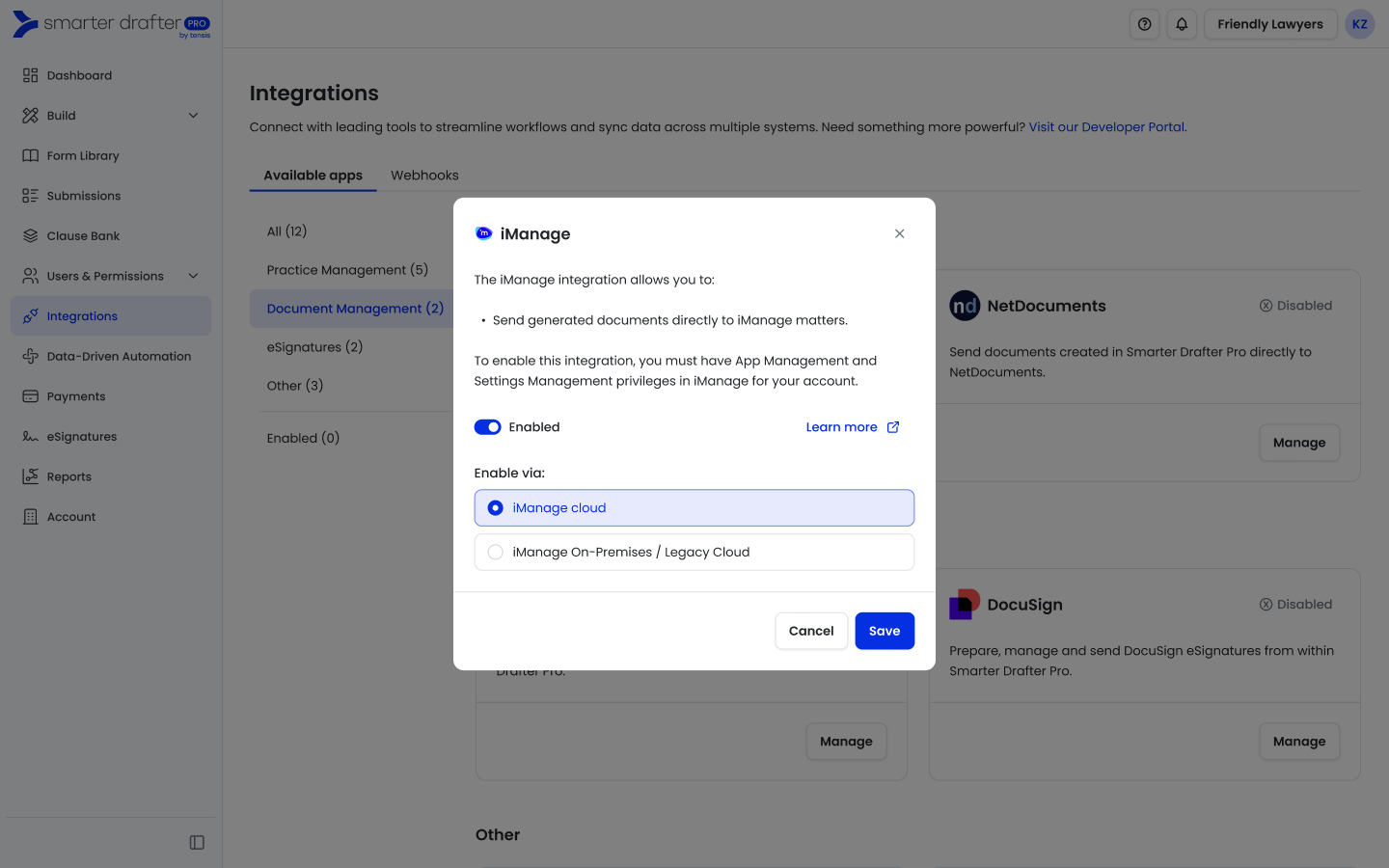
4. Click Save and Authenticate
iManage On-prem/Legacy Cloud
To use the On-Premises / Legacy Cloud iManage Installation, follow these steps.
1. Download Install packages:2. In iManage, access iManage Control Centre then menu Applications.
3. Search for application name Tensis - Smarter Drafter.
4. Register URI:
Note: URL prefix changes based on environment
5. In Smarter Drafter, navigate to integrations and search for iManage
6. Click Manage and then in the dialog click Enable
7. Select iManage On-Premises / Legacy Cloud
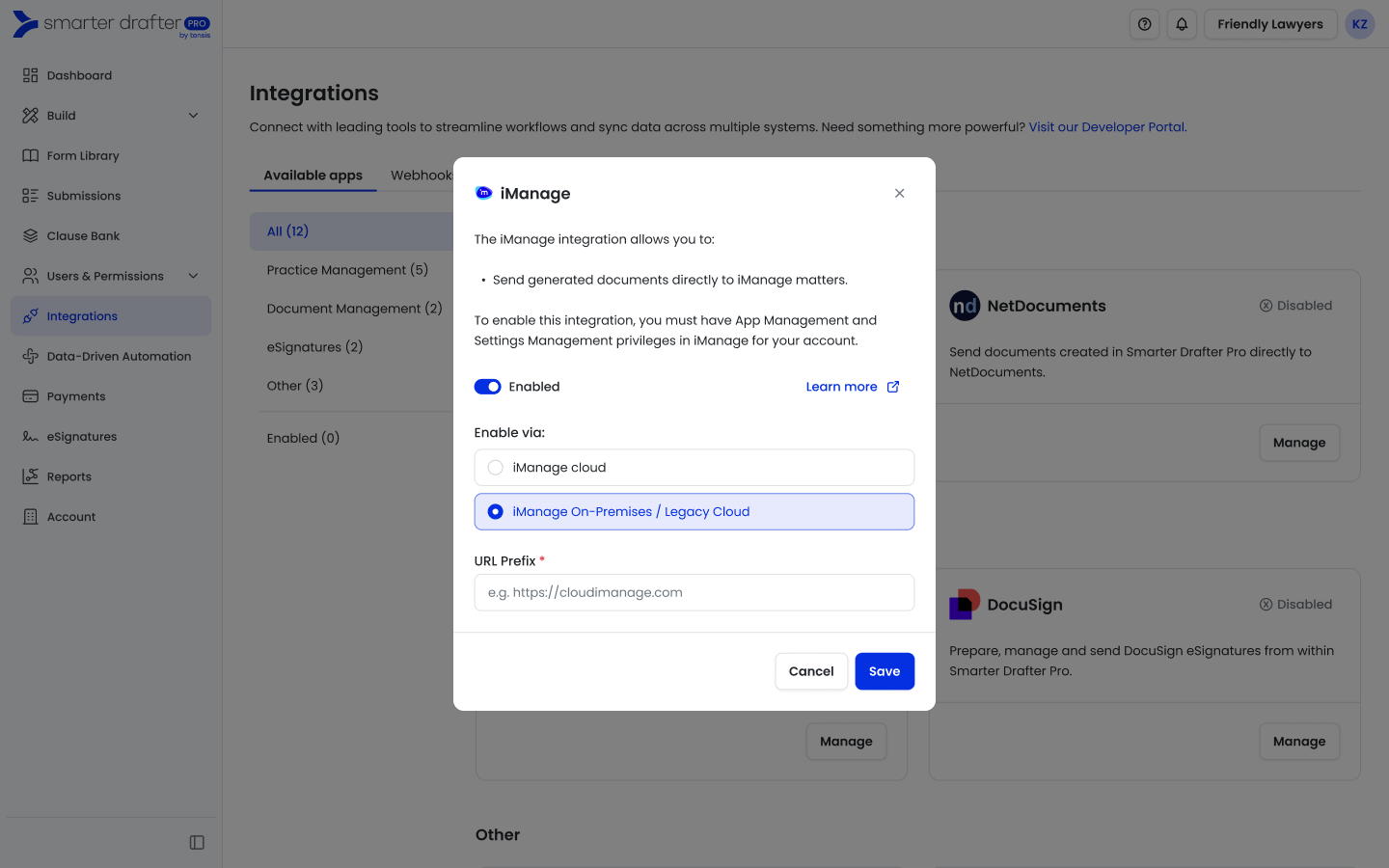
8. Fill instance URL Prefix.
6. Click Save and Authenticate
Configure Smarter Drafter in iManage
1. Access iManage Control Centre then menu Applications.
2. Search for application name Tensis - Smarter Drafter.
Note: If you can't find it, request iManage support to add it to your iManage instance.
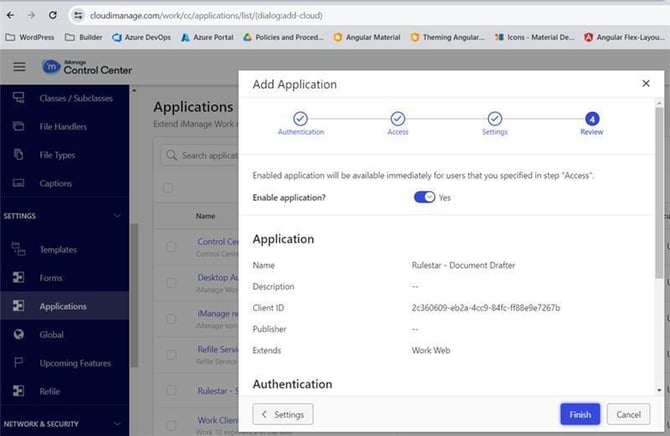
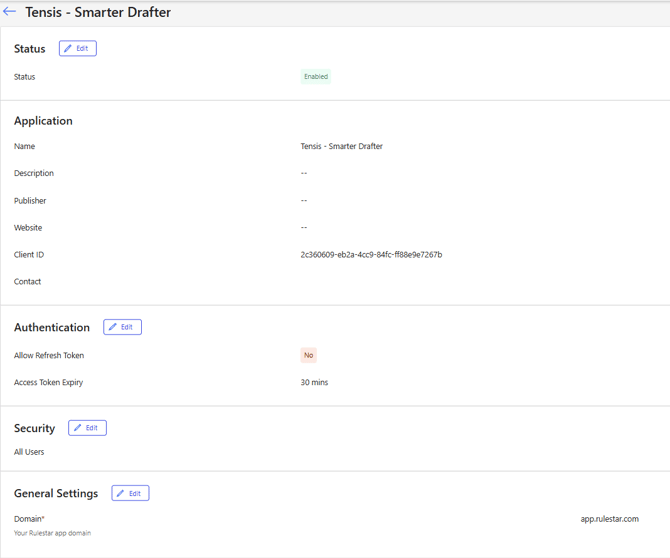
Use the name: "Tensis - Smarter Drafter" or ID: 2c360609-eb2a-4cc9-84fc-ff88e9e7267b.
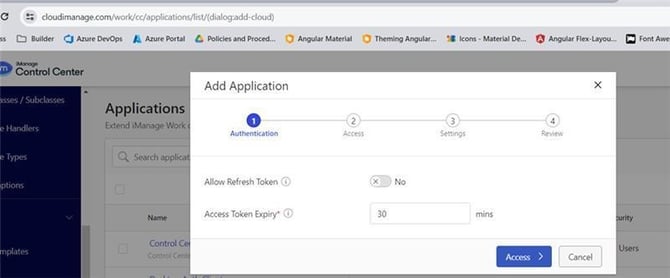
- Allow Refresh Token is set to “Yes”.
- Set Access Token Expiry in alignment with your company policy
(recommendation: 8 hours) - Click Access.
- Allow access to all users or select the users you wish to have to this app.
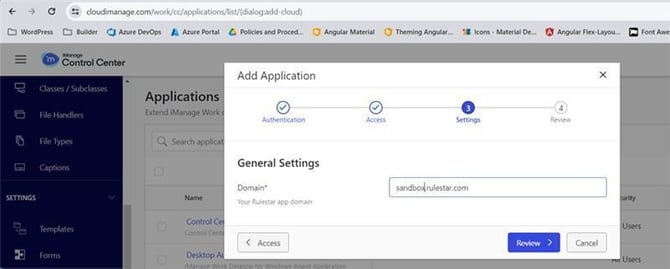
- Click Settings.
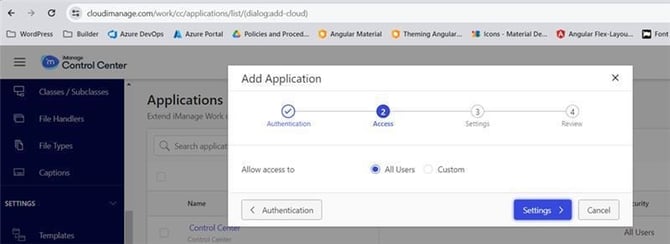
- Enter your unique Smarter Drafter domain (app.rulestar.com or app.smarterdrafter.co.uk).
- Click Review.
- Select Yes to Enable application.
- Click Finish.
Activating Smarter Drafter Document Sync
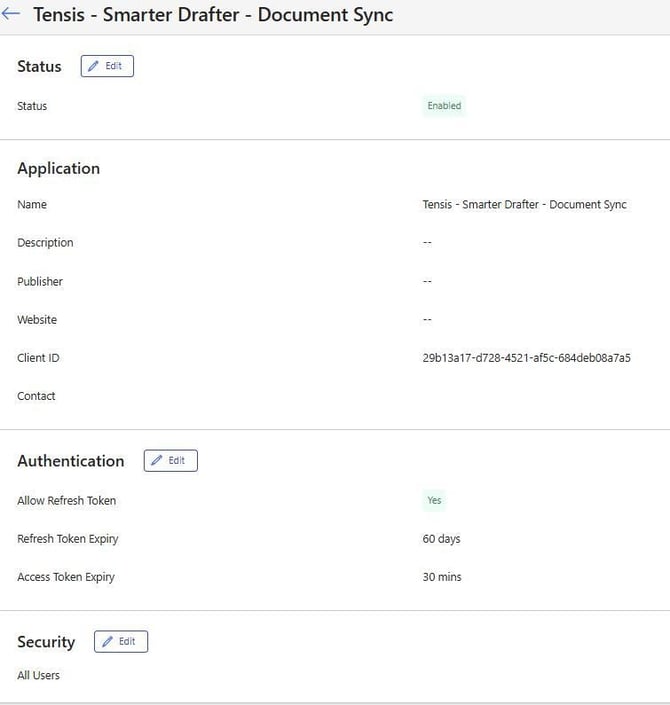
The following applies to Smarter Drafter Document Sync - the application name and Client ID are different.
- Application name: Tensis – Smarter Drafter – Document Sync
- Client ID: 29b13a17-d728-4521-af5c-684deb08a7a5
Additional Considerations
1. Make sure pop-ups are enabled in your browser for iManage Work Web (https://cloudimanage.com or your own instance URL).
2. Make sure you update the Authentication section in iManage if required - it is set to 30min by default. Click Edit in the Authentication settings.
See also
Automatically pull in the context of the matter ID in iManage