
Smarter Drafter integrates directly with NetDocuments so your generated documents land in the right matter the moment they're created - no manual uploading, no file shuffling, no lost versions. At the end of any form submission, drafters can choose to send the generated document straight to a NetDocuments matter, keeping your document management system as the single source of truth. This saves time on every submission, reduces the risk of documents being saved in the wrong place, and ensures your team's workflows stay aligned with your firm's filing conventions.
How it works
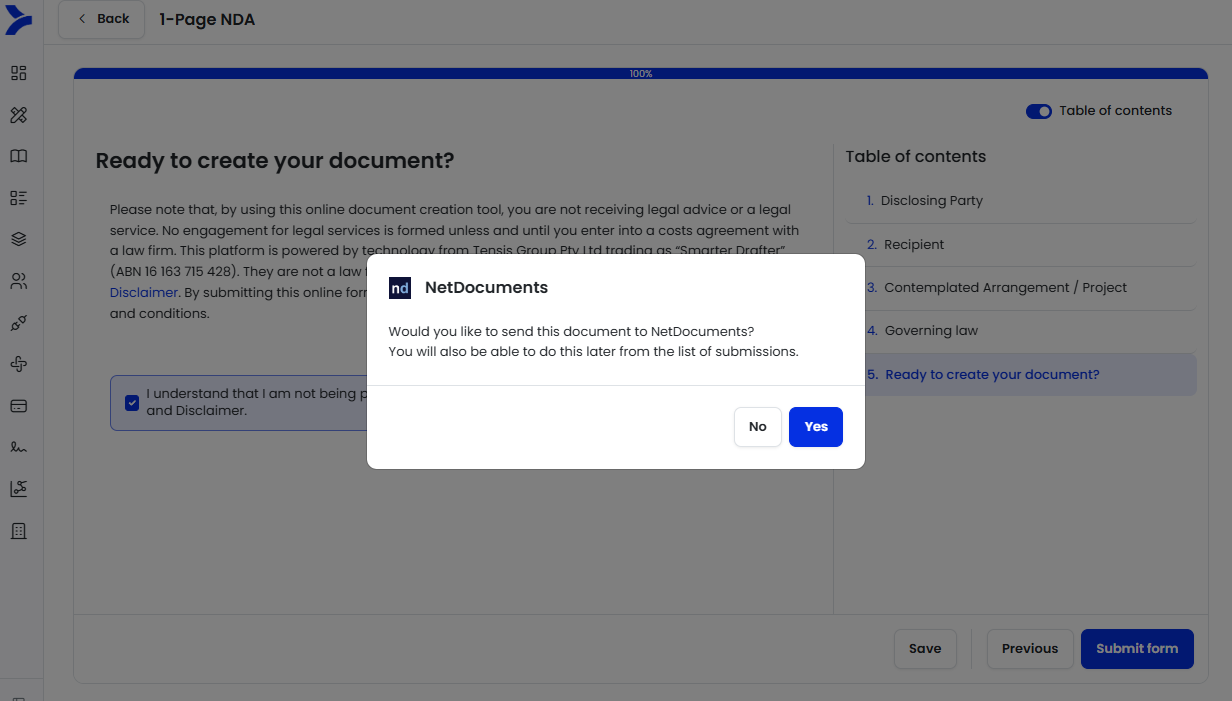
1: Choose to send the document to NetDocuments
Once you've completed the form and are ready to submit, a dialog will appear asking "Would you like to send this document to NetDocuments?"
Click Yes to send the generated document to NetDocuments. Click No to skip this step — you'll still be able to send the document to NetDocuments later from the submission details.
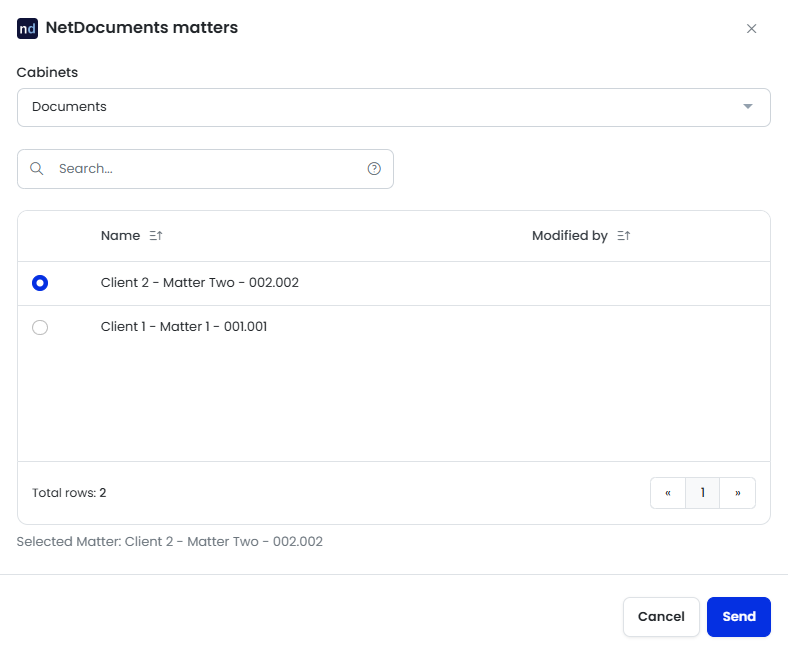
Step 2: Select the cabinet and matter
After clicking Yes, the NetDocuments matters dialog will open. Here you can:
- Select the Cabinet from the dropdown at the top
- Use the Search field to quickly find a specific matter
- Select the matter you want to send the document to from the list
Once you've made your selection, the chosen matter will display at the bottom under Selected Matter. Click Send to confirm, or Cancel to skip sending to NetDocuments and complete the submission without the integration.
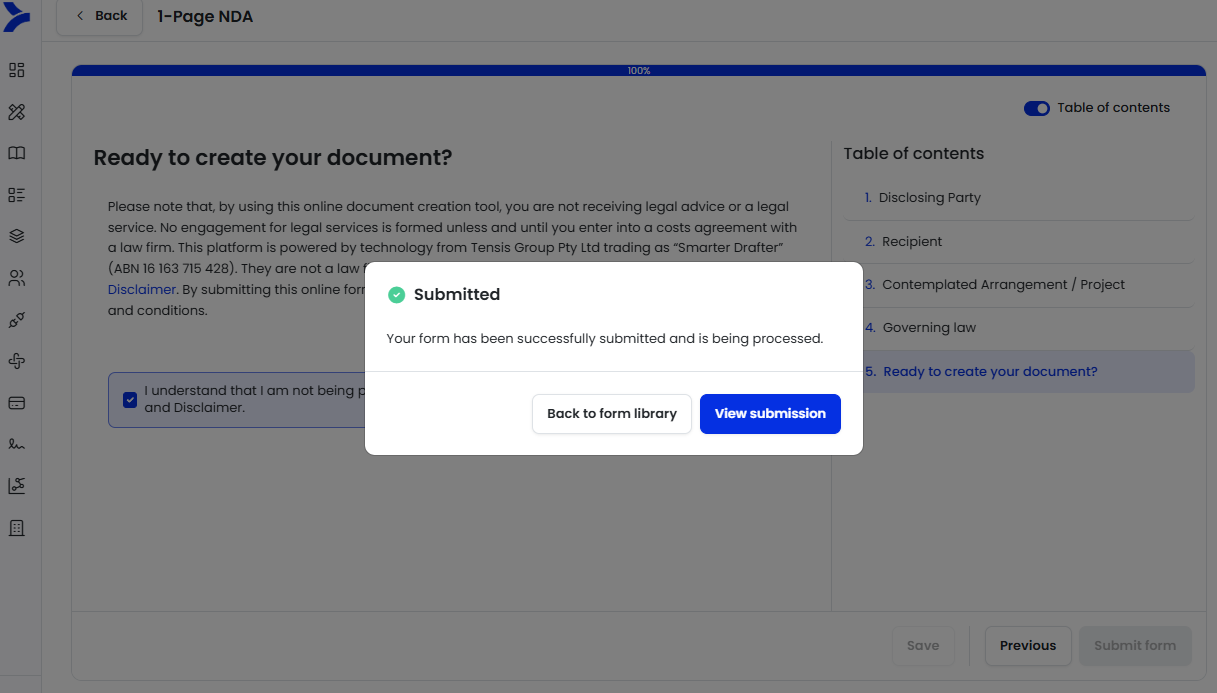
3: Submit the form
After selecting the matter, the form will submit and you'll see a Submitted confirmation. Your form has been successfully submitted and is being processed.
From here you can click View submission to track progress, or Back to form library to start a new submission.
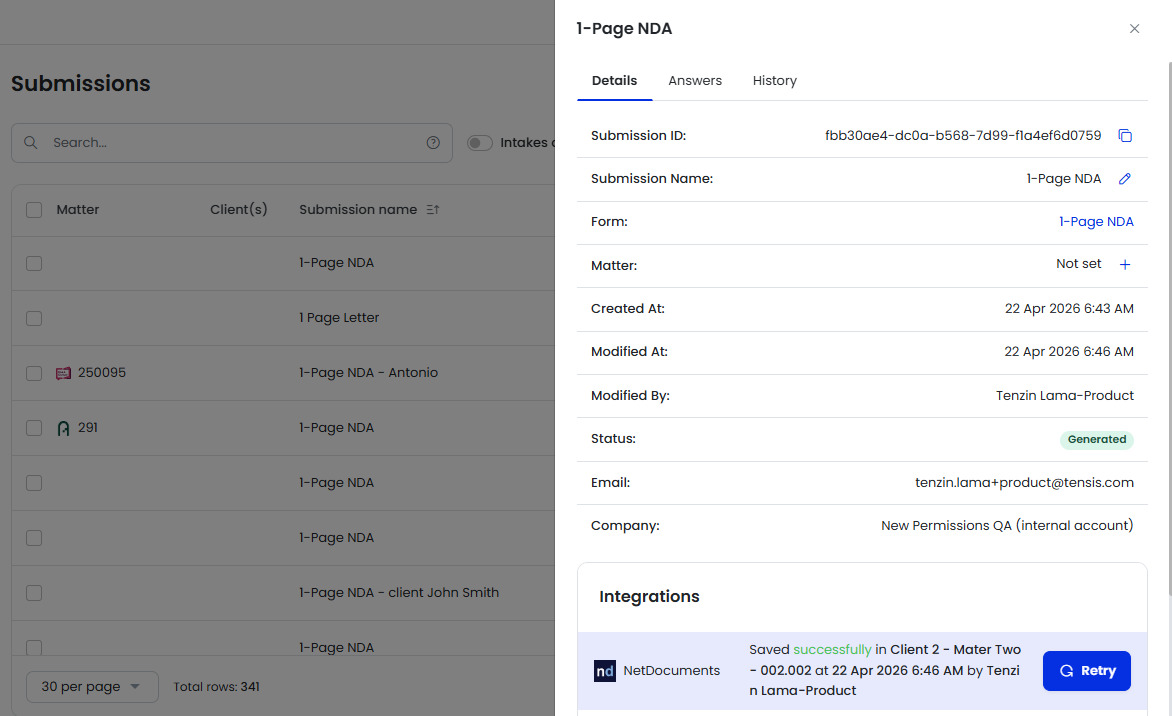
Step 4: Check the submission history
Once the document is generated, it will automatically be sent to the NetDocuments matter you selected. To confirm it was sent successfully, open the submission and scroll to the Integrations section.
You'll see the NetDocuments status, including which matter the document was saved to, the time it was sent, and who triggered it. If the send failed for any reason, click Retry to attempt sending it again.
Step 5: View the document in NetDocuments
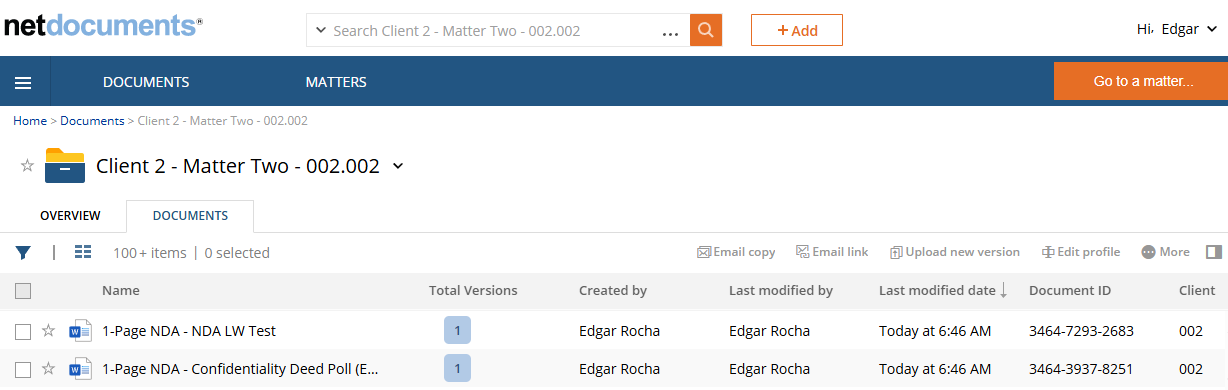
Head over to NetDocuments and navigate to the matter you selected. Your generated document will appear in the matter under the Documents tab, ready to review, edit, or share using your usual NetDocuments workflows.
Common issues or questions
What happens if I click No or Skip? The form submission will still complete and the document will still be generated — it just won't be sent to NetDocuments automatically. You can send it manually from the submission details later.
Can I resend a document if it failed? Yes. Open the submission, scroll to the Integrations section, and click Retry next to the NetDocuments entry.
Where can I see whether the document was sent successfully? Open the submission and check the Integrations section on the Details tab. The status will confirm whether the document was saved successfully and which matter it was sent to.