
Preview draft shows the documents your form will produce, in a panel beside the form. The preview updates as you answer each question. Answers fill in, and clauses appear or disappear based on your responses. It is produced by the same engine that generates your final documents, so the content closely matches your final output, with only minor differences in formatting and page breaks.
Use it to catch a wrong answer while the question is still in front of you, rather than after you submit. Preview draft is available in the Form Library and in the iManage integration. It isn't available on intake forms.
How to
Open the preview
1. Open a form.
2. Click Preview draft at the top right of the form. The preview opens in a panel to the right of the form.
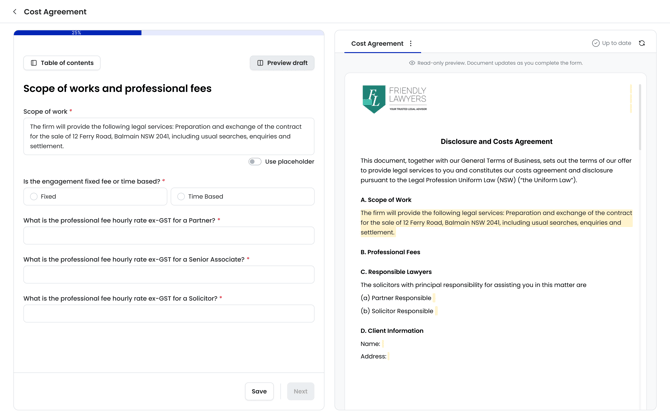
3. To change the panel's width, drag its left edge.
TIP: The preview opens automatically the first time you open a form. After that, it stays open or closed based on how you last left it.
Switch between documents
4. If your form produces more than one document, each appears as a tab at the top of the panel. Click a tab to view that document.
5. If there are too many documents to show as tabs, click the dropdown to see the full list. Each row shows the document name, and underneath, the file name it will be saved as.
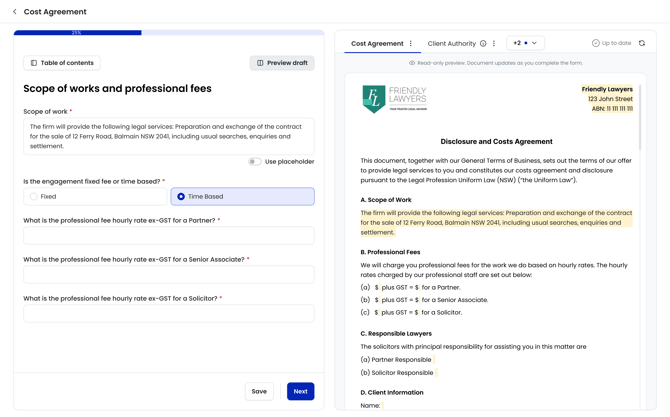
Documents are added and removed from the list as your answers change. Parts of a file name you haven't answered yet appear in square brackets, for example "Cost Agreement - [Client Name]".
Read the preview
6. Fill in the form as normal. The preview updates when you select an option, or when you click out of a text field.
7. Check the status at the top of the panel:
-
Updating … means the preview is refreshing. The previous version stays visible until the new one is ready.
-
Up to date means the preview reflects all your current answers.
-
Update failed means the latest refresh didn't complete. Click the refresh icon to try again.
8. Look for yellow highlighting in the document. A thin yellow marker shows where an unanswered question's content will go. Answered content is highlighted in yellow.
Jump to a question from the document
9. Click any highlighted answer in the document. The form moves to the question that answer came from, including questions on other pages.
10. Change your answer if needed. The preview updates to reflect the change.
Download a document
11. Click the options on a document tab, then download to retrieve the document as a DOCX file. The downloaded document uses your answers at that moment and contains no yellow highlighting. Downloading doesn't submit the form.
Common questions
Q: Is the preview exactly what my final document will look like?
A: It's very close. The preview uses the same engine as your final documents, so the content, conditional clauses, numbering and cross-references match. Formatting and page breaks can differ slightly in the final document. Use the preview to check what your document says rather than exactly how it's laid out.
Q: A document disappeared from the preview. Why?
A: Some documents only generate when certain questions are answered a particular way. If you change one of those answers, the document no longer applies and is removed from the preview. If you're viewing it at the time, you'll see No longer generating. Changing your answer back brings it back into the preview.
Q: Why does the panel say "No documents yet"?
A: None of the form's documents apply based on your answers so far. Keep filling in the form and documents will appear as they become relevant.
Q: Why can't I click some highlighted items?
A: Only answered content links back to the form. Unanswered markers aren't clickable. Firm details such as letterhead and ABN aren't highlighted.
Q: Why is the Preview draft button greyed out?
A: The form doesn't produce any documents, so there's nothing to preview.
Q: Why can't I see the preview?
A: The preview only shows when your browser window is at least 1200 pixels wide. If your window is narrower, the Preview draft button is still there but the panel is hidden, and it reappears when you widen the window again. If the button is greyed out, the form doesn't produce any documents, so there's nothing to preview.