
Once you’ve tested a form and you're happy with how it works, you can publish it and make it available to your team. Publishing creates a locked version of the form, and releasing it adds it to your organisation’s Forms Library. This guide explains how to do both.
Instructions
1. In the Builder, open the form you want to publish.
2. Click on Draft in the top-right corner.
3. Select Publish
4. Confirm the action when prompted.
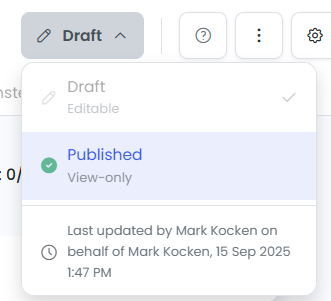
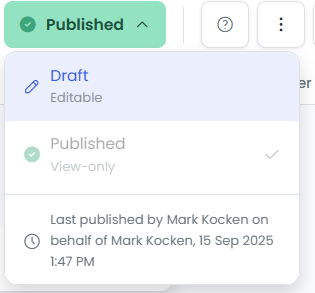
NOTE: This locks the form so it can be safely used. No further edits can be made unless you create a new draft.
Tips for Use
- Always test your form thoroughly before publishing.
- Use meaningful form names — the released form will appear exactly as titled.
- If you're replacing a previous version, consider communicating any major changes to users.
Common Issues & Solutions
- Issue: I can’t edit a published form.
- Solution: Click Create Draft to make an editable version of the form.
- Issue: I released the wrong form or need to remove it.
- Solution: Contact your administrator or remove the form from the Forms Library if your permissions allow.