
Naming conventions let you define how submissions and generated files are named, using a mix of free text, form fields, and submission details. Once set, names are applied automatically when the form is submitted, so every submission and document follows your firm's naming standard without manual input.
Conventions are set in two places: submission naming is configured in the parent form's settings and cascades to intake forms, while document and email file naming is configured on each individual template. If a convention doesn't produce any values (for example, the fields it uses weren't filled in), the form name or template name is used as a fallback.
How to
Set a submission naming convention
1. Open your form and go to Form settings > Submissions.
2. In the Automatically name submissions section, click into the input field.
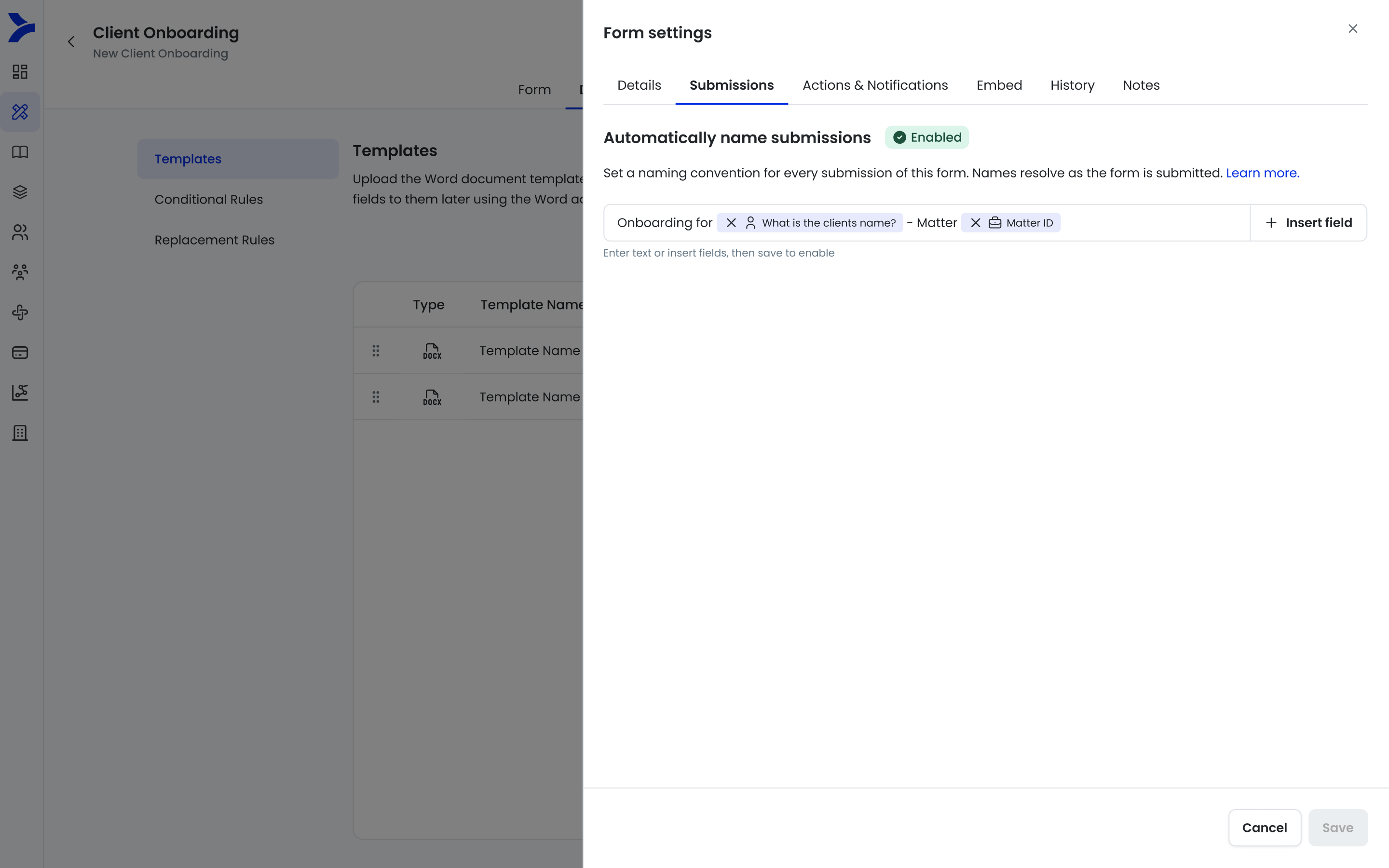
3. Type any free text, and click Insert field to add form fields or submission details (such as Matter ID, submission date, or submitter name).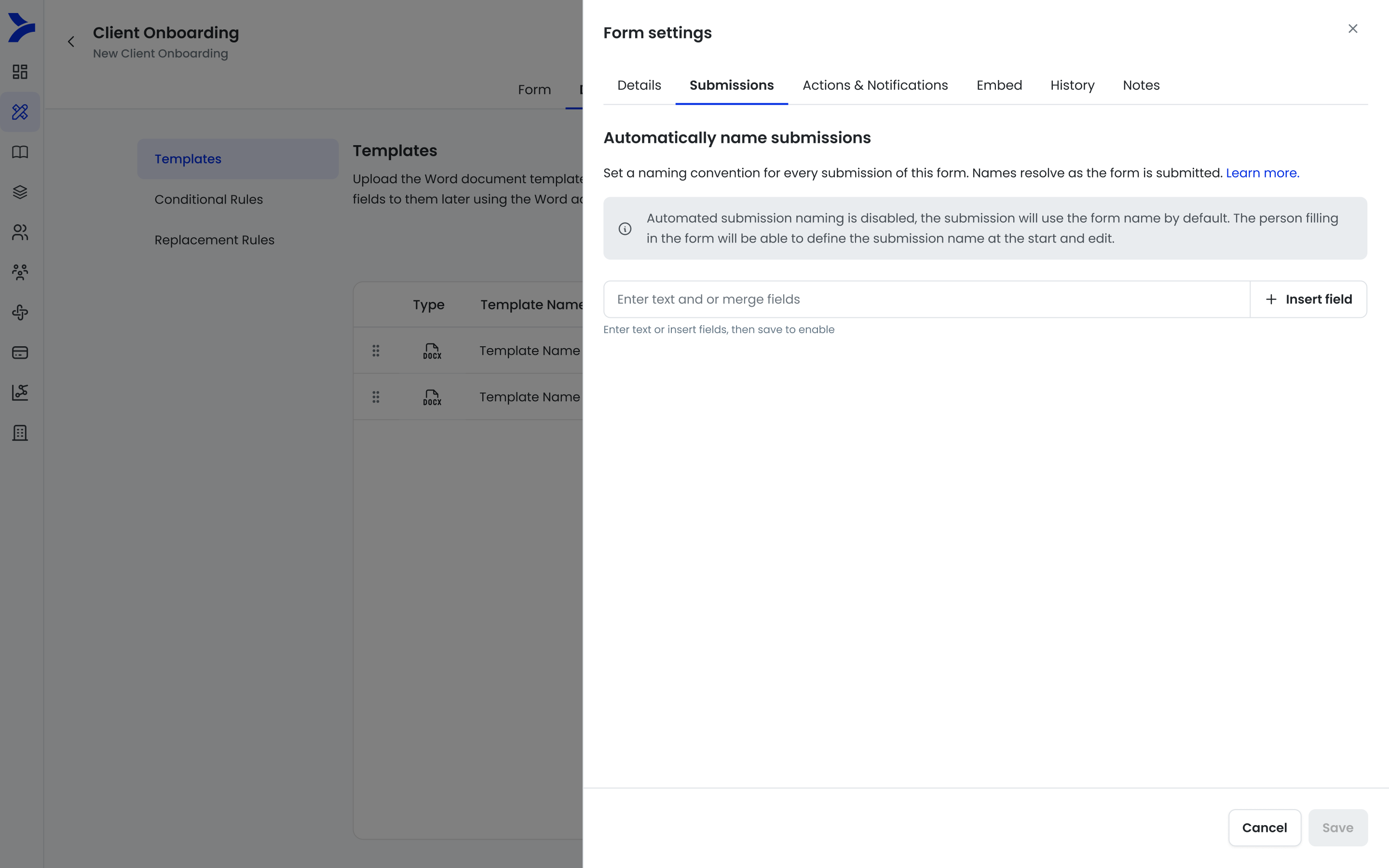
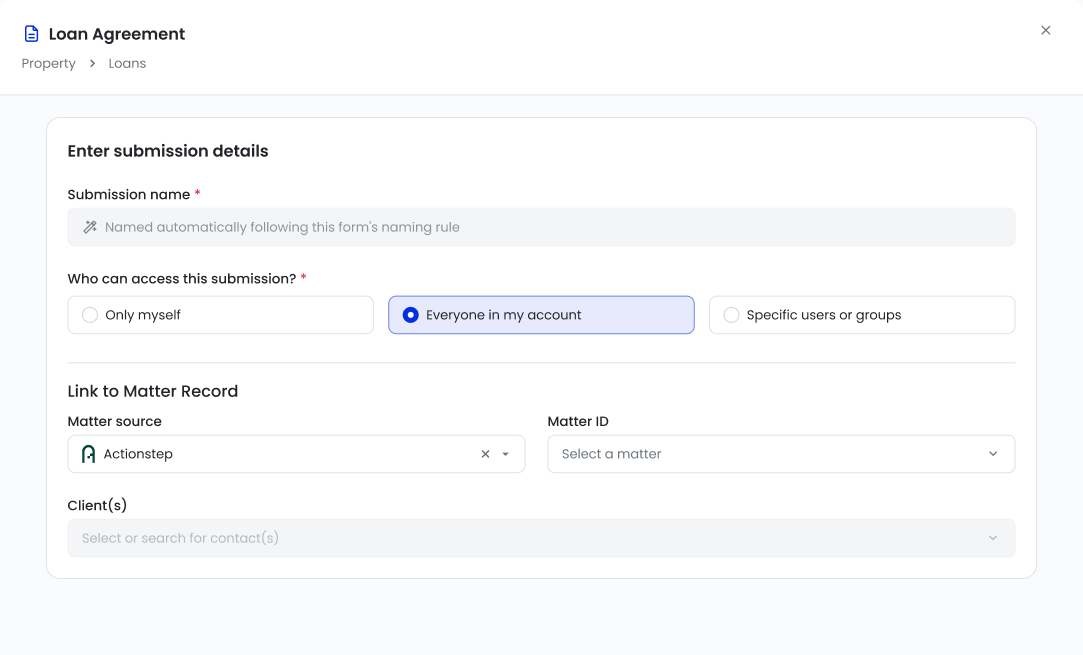
When a drafter starts the form, the Submission name field is disabled, with a message confirming a naming convention is applied.
Tip: Supported field types are name, phone, email, address, office, number, currency, text, matter, ID number, dropdown, radio, and date/time. Fields from imported section blocks can also be used, unless they've been excluded from the form.
Set a document or email naming convention
1. Open your form and edit the individual document or email template.
2. Navigate to the Automatically name template upon generation section at the end of the page.
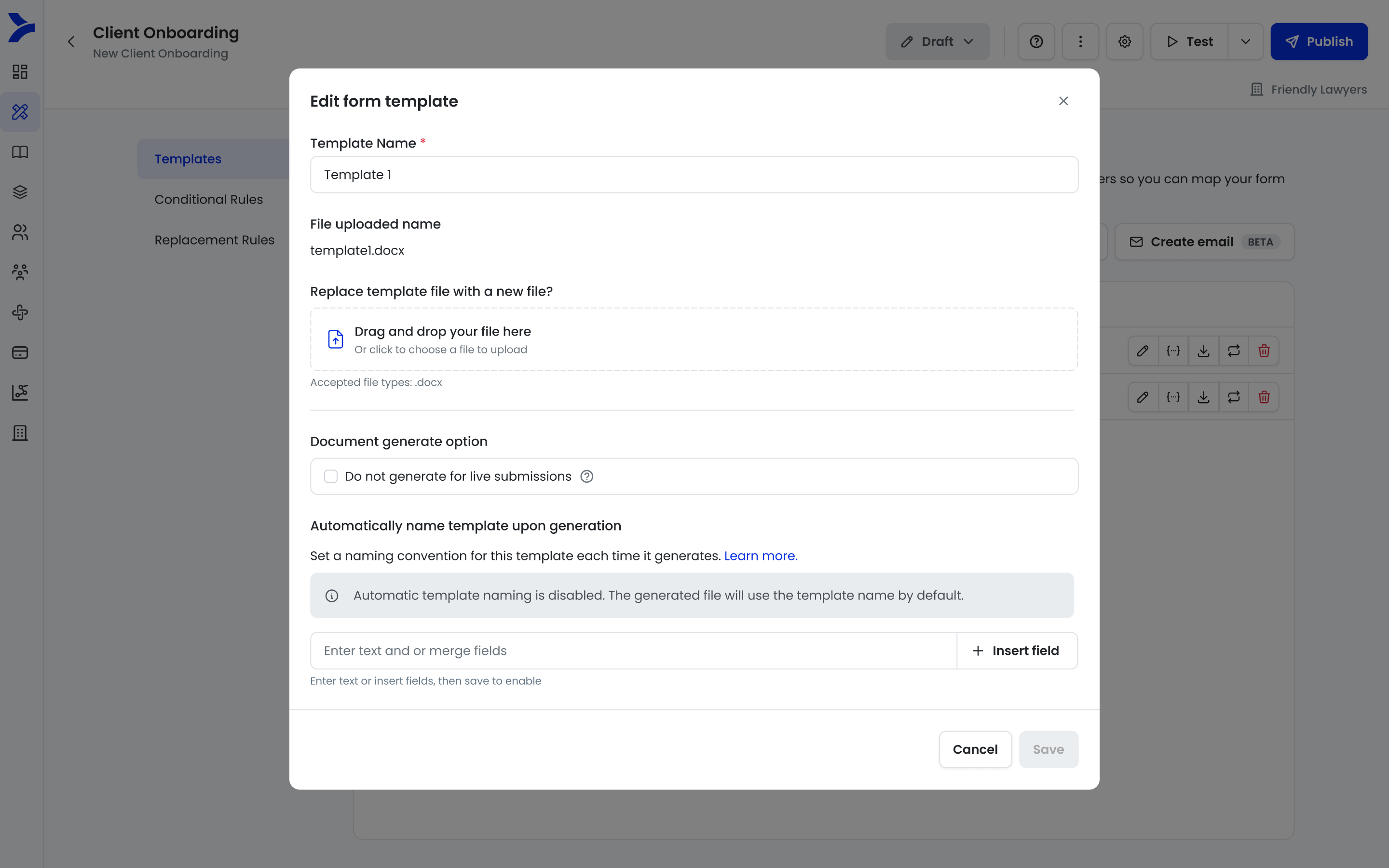
3. Compose the file name using free text and Insert field, which includes form fields and submission details such as the template name and form name.
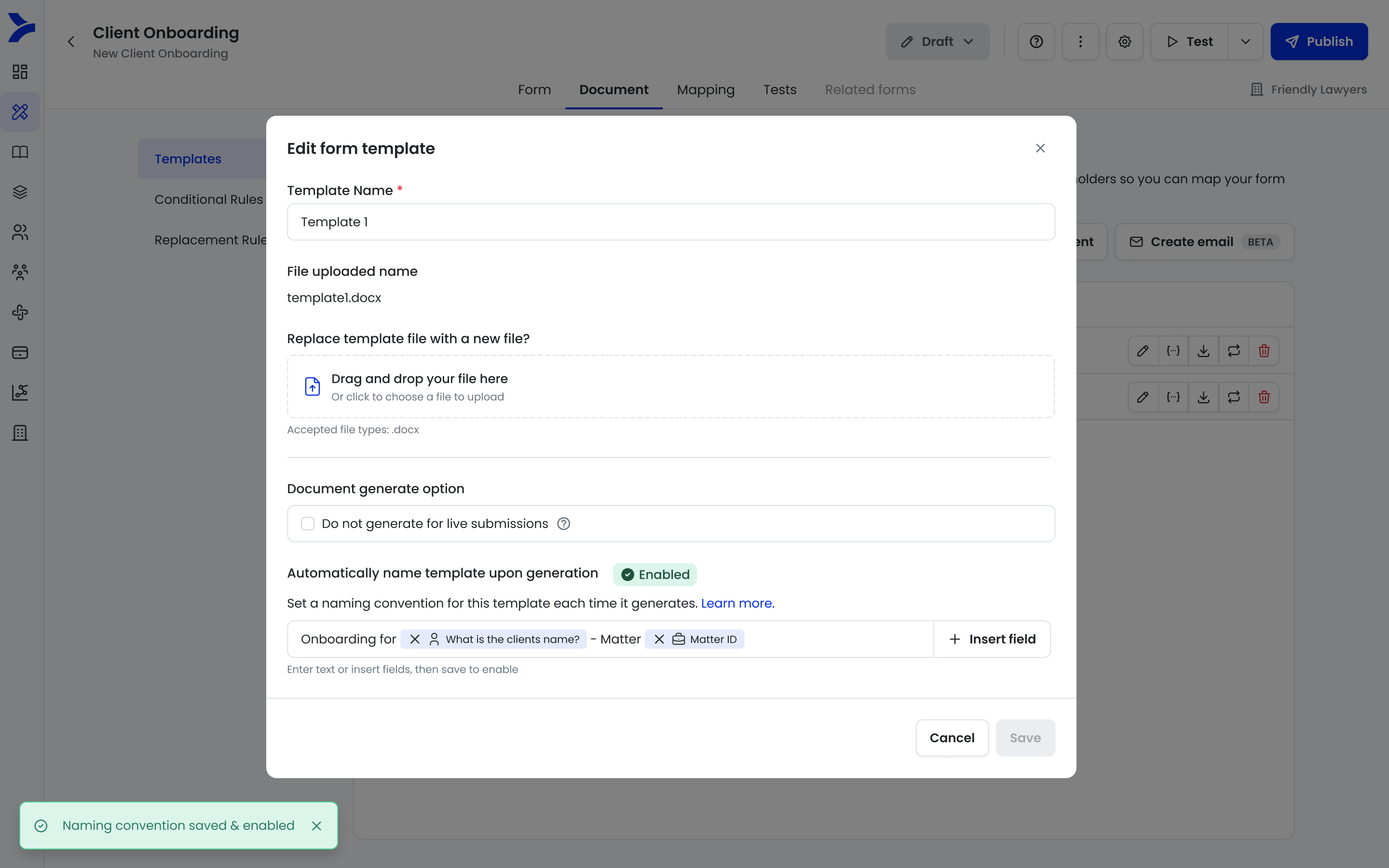
4. Save the template. Each file generated from this template will use the convention.
Note: When uploading multiple documents at once, the naming convention component is disabled. Upload first, then edit each document individually to set its convention.
Common questions
Q: Can drafters still edit the submission name?
A: Yes. The convention is applied at the submission review page, and drafters can edit it freely there. The name won't revert to the convention afterwards.
Q: What happens if the fields in my convention are empty?
A: The submission falls back to the form name, and files fall back to the template name. If a saved submission already had a name, that name is kept.
Q: Can I set a convention on a child or intake form?
A: No. Conventions are set on the parent form only and automatically cascade to intake forms. The Submissions tab is disabled on those forms.
Q: Does enabling a convention rename my existing submissions?
A: No. Conventions apply only to submissions and files generated after the convention is saved.
Q: Does this work with the API, MCP, and iManage?
A: Yes. For API and MCP submissions, the convention overrides the name in the request when the submission is generated, unless the convention produces no values. Files saved to iManage use the defined convention.
Q: How do I turn a convention off?
A: Clear the convention field and save. Submissions then return to the default behaviour, where the person filling in the form names the submission.
Q: Why does my in-progress submission show the form name instead of the convention?
A: The convention is applied when the form is submitted, not when it's started. Until then, the submission uses a temporary name - the form name, or for intake forms, the form name plus the recipient's full name. You can edit the temporary name from the Submissions page if needed.