
Text fields allow users to enter freeform responses in your form. You can choose between single-line and multi-line (text area) formats, depending on how much space you want to give for the answer. This guide explains when and how to use each option.
Instructions
Add a Single-Line Text Field
- Open your form in the Form Builder.
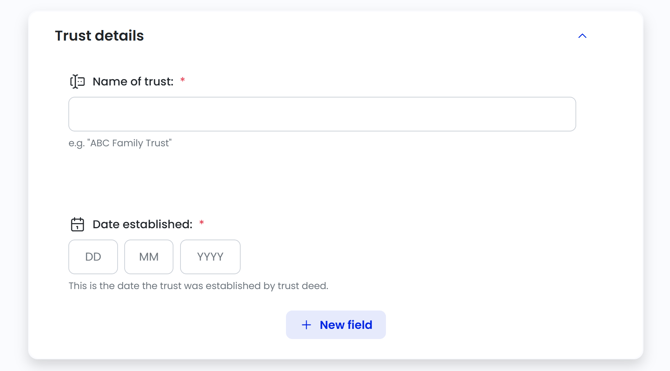
- Click New Field in the section where you want the question to appear. (If you can't see the New field button, make sure your form is in Draft mode).
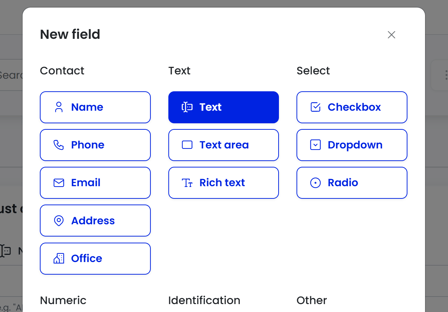
- From the field types, select Text Field.
- Enter the Question label for the field.
- (Optional) Use the Supporting Text field to provide extra guidance. This will appear as an additional line of text underneath the field, visible to the form-filler.
- Click Save.
NOTE: A Text Field is best used for short answers like names, job titles, or one-word responses.
Add a Multi-line Text Area Field
- Follow the same steps as above.
- Select Text Area instead of Text Field.
- Enable Rich Text if you want to allow formatting (bold, bullet points, etc.).
- You can also select Rich Text as a field type from the New field popup.
- Add your question label, optional supporting text and any other properties you may want to apply.
- Click Save.
NOTE: A Text Area is ideal for longer responses like explanations, background details, or notes.
Tips for Use
- Use Text Field when the answer is brief and formatting isn’t needed.
- Use Text Area when the response might be multiple lines or needs rich formatting.
- You can set minimum or maximum characters in both field types to control the length of the answer.
- Supporting text appears immediately beneath the question and helps guide the user.
Common Issues & Solutions
- Issue: The user input is too long or short for your template.
- Solution: Use the Min/Max Characters setting to guide the length of responses.
- Issue: I want the filler to see a formatting toolbar.
- Solution: Enable Rich Text when adding a Text Area field.