
To explain how to build a form and code a template with Linked records, this article follows an example matter for a property loan. In this matter there are several loans. Each loan has its borrowers and guarantors. Each loan is secured by one or more security properties, and each security property has its mortgagors. The records relate to each other in many-to-many ways:
- A borrower or guarantor can appear on more than one loan.
- A security property can secure more than one loan (cross-collateralisation).
- The same people and properties recur across the matter in different combinations.
To handle this, the example form captures each record once - customers, loans, properties — then uses Linked fields to draw the relationships between them. A borrower on three loans stays one borrower, linked to all three. A cross-collateralised property stays one property, linked to every loan it secures. The same customer can play different roles across the matter: a borrower on one loan, a mortgagor on a property.
Set up Linked fields in a form
This walkthrough builds the example form one section at a time. Each section either captures a record or draws a relationship to one captured earlier, so the order matters.
Step 1 - Create section to capture customers
Every individual in the matter is entered once, in a Customer Details section, as a Customer record. These are the people who go on to play roles elsewhere: a borrower on one loan, a guarantor on another, a mortgagor on a property. Entering them once here is what lets you reuse them throughout the form instead of re-entering the same person under each role.
- Create a section for your customers, for example Customer Details. Or if you have an existing section block import the section block. Ensure the section block fields are mapped to the Customer record type.
- Make the section repeatable so the person filling in the form can add every customer in the matter.
- Add the fields that identify each customer, such as What is the customer's name? and What is the customer's email address?
- Give each field a field alias and map it to the Customer record type. A field can only be used in a Linked field later if it has an alias and is mapped to a record type.
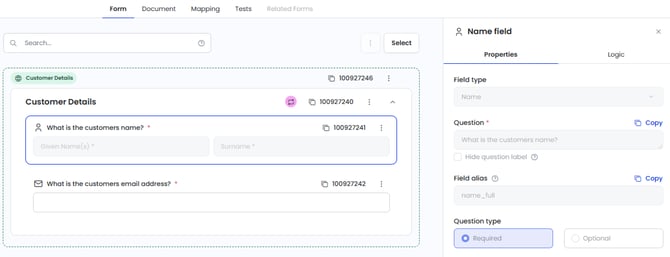
Customer details section using section block
Note: This is the only section in our example with no Linked field. It's the source every later relationship points back to, so it comes first. A Linked field can't go in the first section of a form anyway, since it has to reference a record entered earlier.
Step 2 - Capture loans and link the borrowers
Next, create a section for the loans. This section captures each loan's own details and is where you draw the relationship between a loan and the people on it.
- Create a Loan section and add its detail fields, such as What is the loan ID? and What is the agreement date? Give each a field alias and map them to the Loan record type.
- Add a new field and choose Linked from the Select group in the New field modal.
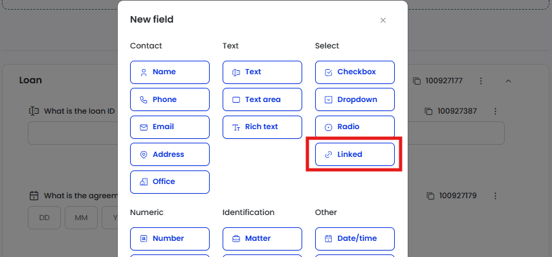
New field Linked field
- Enter the Question, for example Who are the Borrowers for this loan?, and add a Field alias such as link_loan_borrowers.
- Set Link from to the record list the form filler chooses from. Select the customer name field from the Customer Details section. Only fields with an alias, mapped to a record type, and of a supported type appear here. The pill on the option shows its category — here, Role.
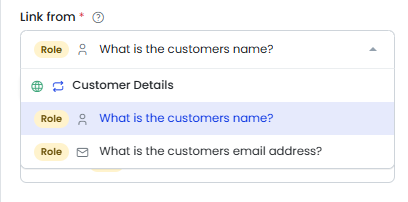
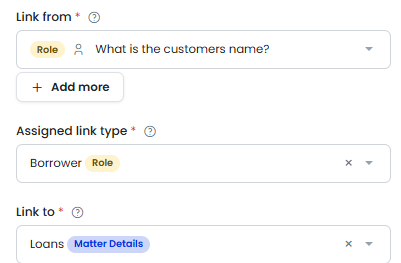
- Set Assigned link type to the role the chosen customer takes on through this link. Because the customer is a Role record type, you can choose any active Role record type in the tenant. Select Borrower. The customer you pick is now also a Borrower.
- Set Link to to the record in this section the customer is being linked to. Select Loans. This field stays disabled until Assigned link type is set.
-
The finished field reads: Link from the customer's name (Role), Assigned link type Borrower (Role), Link to Loans (Matter Details). A customer, playing the role of Borrower, is now linked to the loan.
- Click Save
Add the guarantors the same way
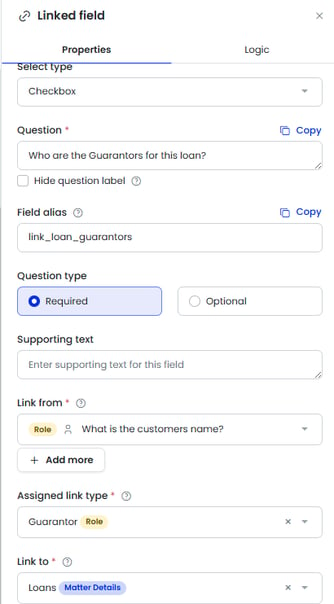
A loan also has guarantors, and a guarantor is another role a customer plays. Add a second Linked field using the same steps:
- Add a Linked field with the question Who are the Guarantors for this loan? and alias link_loan_guarantors.
- Set Link from to the customer name field again, Assigned link type to Guarantor, and Link to to Loans.
- Click Save.
Step 3 - Capture security properties and link them to loans
Now create a section for the security properties. A property is captured once here, then linked to the loans it secures and to its mortgagors.
- Create a Security Properties section and add its detail fields, such as What is the Security Property address? and What is the current value of the property? Give each a field alias and map them to the Security Property record type.
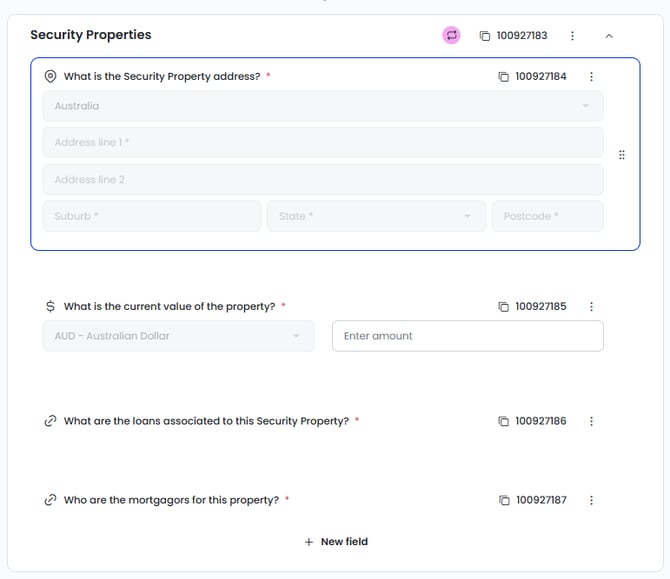
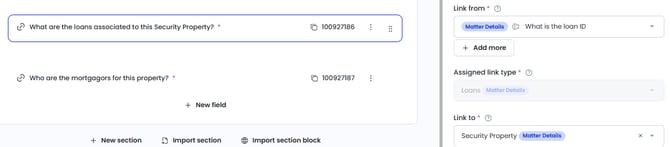
- Add a new field, choose Linked, and enter the Question, for example What are the loans associated to this Security Property?, with a Field alias such as link_sec_prop_loan.
- Set Link from to the loan ID field from the Loan section. This time the field is a Matter Details record, shown by its pill.
- Notice that Assigned link type is locked to Loans and can't be changed. A Matter Details record can't take on a second role, so it keeps its own record type. This is different from the borrowers and guarantors links, where the customer was a Role record and you chose the role yourself.
- Set Link to to Security Property.
Add the mortgagors the same way
A property also has mortgagors, and a mortgagor is another role a customer plays. This reuses the same Customer Details list once more:
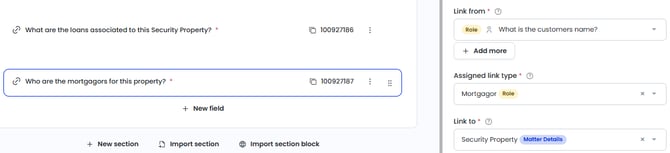
- Add a Linked field with the question Who are the mortgagors for this property? and alias link_secprop_mortgagor.
- Set Link from to the customer name field, Assigned link type to Mortgagor, and Link to to Security Property.
- Click Save
The same customer entered at the start can now be a borrower on one loan and a mortgagor on a property, all from the one record.
Step 4 - Coding the Word template
Once the relationships exist in the form, you build them into the Word template using the Linked Records tab in the Smarter Drafter Word add-in. This tab lists only the record types used in Linked fields, grouped by the role each record plays — so a customer linked as a Borrower appears under Borrowers, the same customer linked as a Mortgagor appears under Mortgagors, and so on. Each group shows the section the record came from and its mapped fields, each with an ADD button.
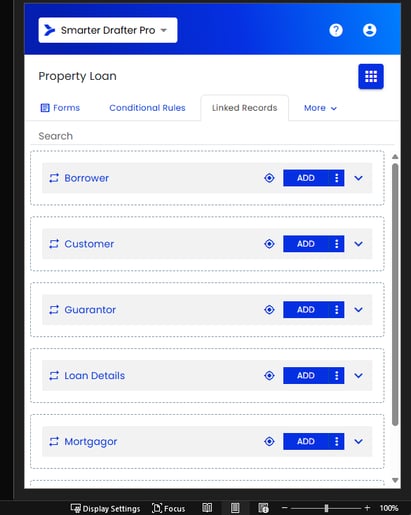
Smarter Drafter Builder Word add-in Linked Records tab view
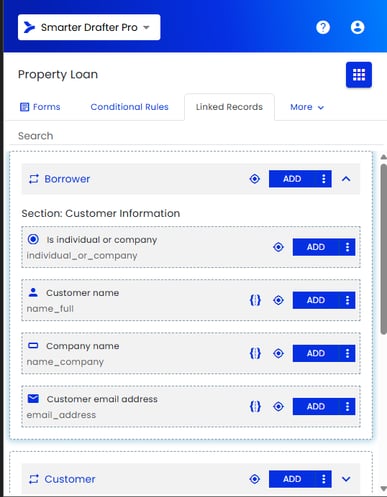
Linked Records tab display fields in a record type
To explain the capabilities, two use cases will be demonstrated.
Use case 1 - listing every record of a record type
The simplest output lists all records playing one role across the matter, for example every Borrower. This uses a single repeating content control with no nesting.
- In the Linked Records tab, find the Borrower group, click to dropdown the accordion. Click on Add to place the content control into the document.
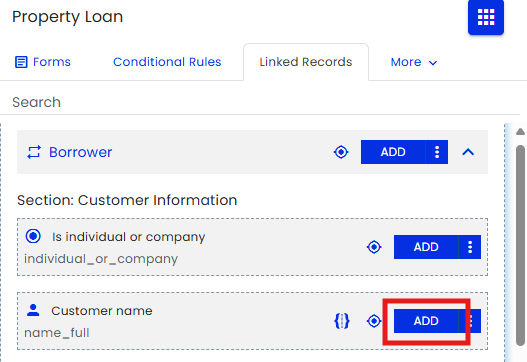
- Next, wrap the text where you added the Borrower Name content control and select the Add from the Borrower group.

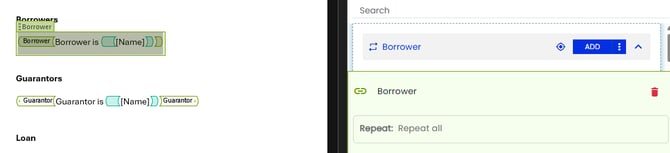
- With the control selected, set Repeat to Repeat all, then click Update. This lists every Borrower in the matter.
-
When the document generates, the control repeats once for each Borrower record.
Use case 2 - list the borrowers and guarantors for each loan
This scenario utilises the links setup between records so that only records linked will appear. Rather than a flat list of records, you want the document to step through each loan and, under it, name only the borrowers and guarantors on that particular loan:
For Loan 123, the borrowers are John Smith and Jane Smith, and the guarantors are Acme Pty Ltd.
For Loan 456, the borrowers are John Smith, and the guarantors are Mary Brown.
John Smith appears under both loans because he's linked to both, and each loan shows only its own people. You produce this by nesting a Borrower content control and a Guarantor content control inside a 'parent' Loan content control. The Loan content control repeats every loan; the controls inside it repeat only the records linked to that loan.
- From the Linked Records tab, add a Loan Details repeating content control and add the loan fields you want shown for each loan, such as the loan ID. Write any fixed wording inside it, for example "For Loan [ID] borrowers are:".
- Inside the Loan Details control, add a Borrower repeating content control and add the Borrower fields inside it, for example "Borrower is [Name]".
- With the nested Borrower control selected, set Repeat to Repeat all linked, then click Update. This shows only the borrowers linked to the loan the control sits inside, not every borrower in the matter.
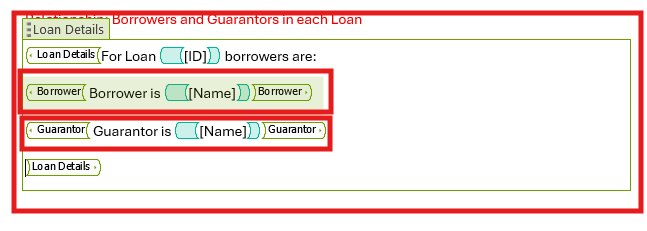
- Inside the same Loan Details control, add a Guarantor repeating content control the same way, for example "Guarantor is [Name]", and set its Repeat to Repeat all linked.
- Select the parent Loan Details control and set its Repeat to Repeat all, so every loan is listed. Click Update.
-
When the document generates, each loan repeats in turn, and under each one its own borrowers and guarantors are listed. A borrower on several loans appears under each one they're linked to.
Common questions
Q: My nested borrower list shows every borrower in the matter under every loan. What's wrong?
The nested control is set to Repeat all instead of Repeat all linked. Repeat all lists every record of that type; Repeat all linked lists only the records linked to the parent control it sits inside. Select the nested Borrower control, set Repeat to Repeat all linked, then click Update.
Q: How do I show just one loan instead of all of them?
Set the parent control's Repeat to a specific instance (1, 2, 3, and so on) rather than Repeat all. The available numbers reflect the maximum repeats allowed.
Q: Can I nest a third level, like properties under each borrower under each loan?
No. Multi-hop links aren't supported. Each nested control filters by its direct link to the control it sits inside, not down a chain. You can nest a Borrower inside a Loan, but not a further level that filters through the borrower.