
Conditional rules are used to customise content based on answers to questions in your form. This article guides you through creating a conditional rule for a Yes/No question, which determines what content will appear in your document based on the user's response.
Instructions
1. Go to the Form:
- Open your form where you want to create the conditional rule.
2. Create the Yes/No Question:
- Ensure you have a Yes/No question in your form. For example: “Does the purchaser qualify for the first homeowner’s grant.

3. Access the Conditional Rules Tab:
In the Form Builder, navigate to the Document tab.
- Select Conditional Rules
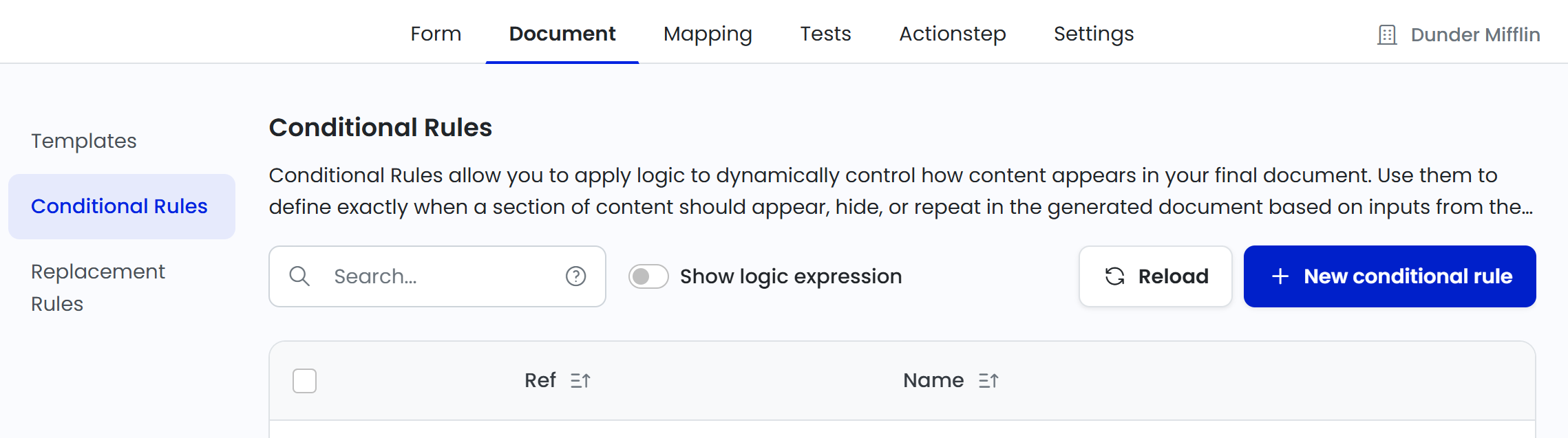
4. Create a New Conditional Rule:
- Click New Conditional Rule.
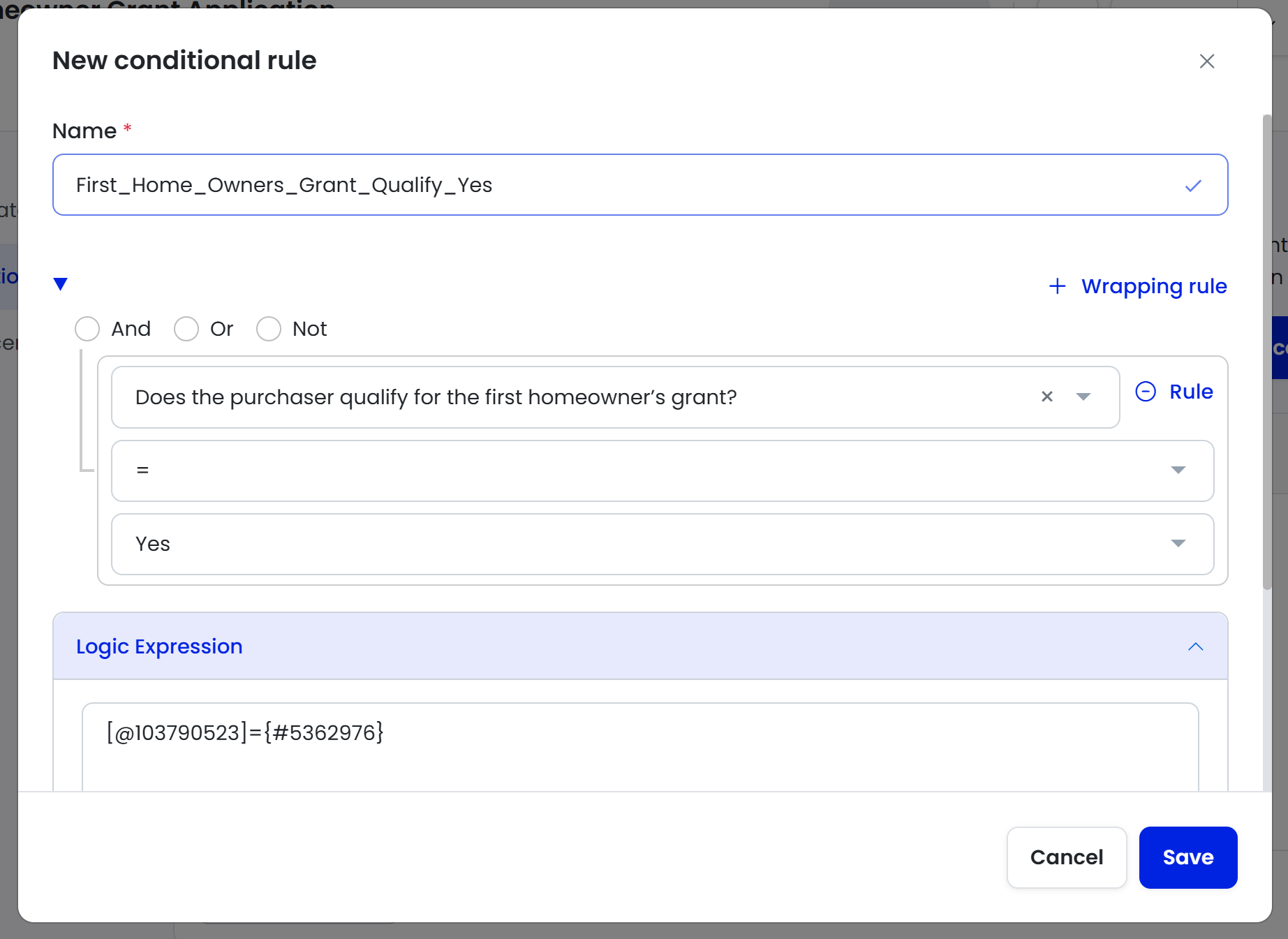
- A pop-up window will appear to create the rule.
5. Set the Rule Criteria:
- Name the rule (e.g., First_Home_Owners_Grant_Qualify_Yes).
- In the rule setup, select the Yes/No question and specify the outcome for a “Yes” response.
- Click Save to create the rule.
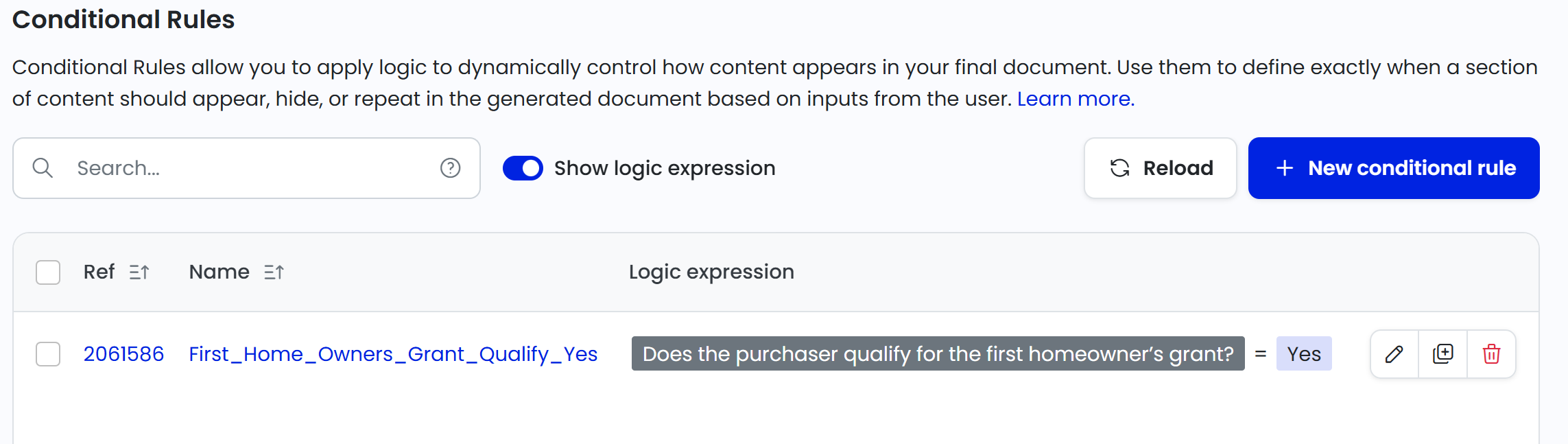
TIP: Turn 'Show logic expression' on above the Conditional Rules table to see the logic expression next to the rule.
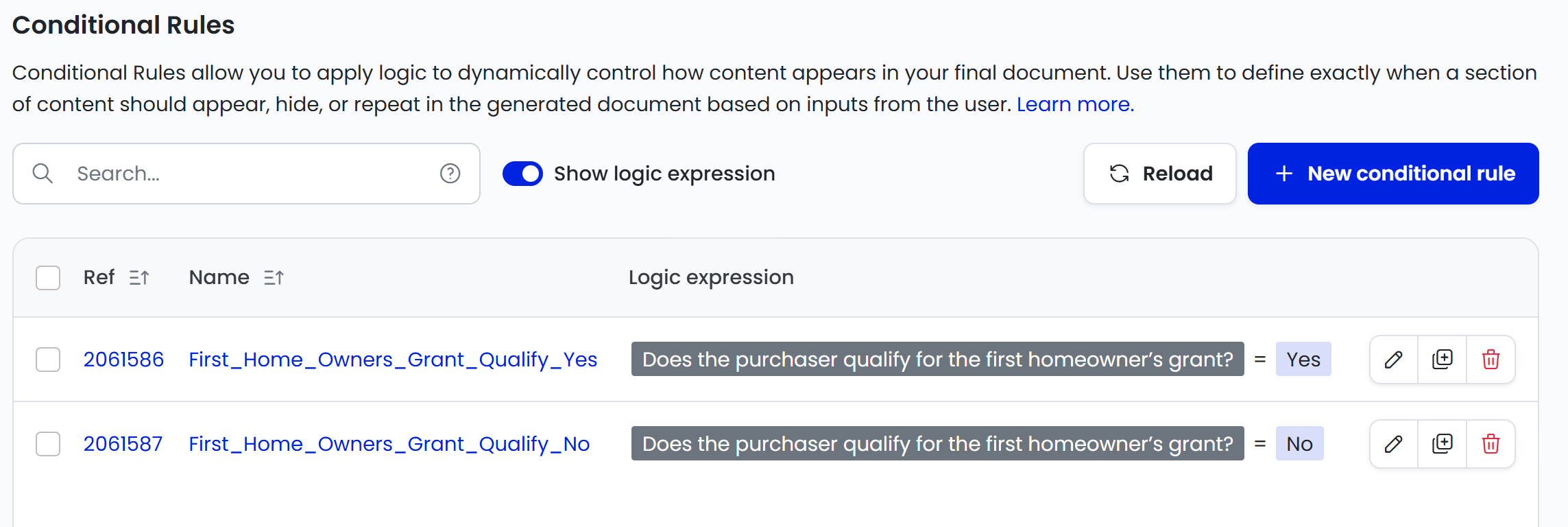
6. Repeat for the “No” Outcome
- Create a second conditional rule for the “No” outcome by following the same steps but changing the criteria for the “No” answer.
7. Apply the Conditional Rule in Your Document
- Open the Word document template where you want to apply the rule.
- Highlight the text that should change based on the Yes/No response.
- In the Word Add-In, select the relevant conditional rule and click Add.
- The rule will now be applied to the highlighted text, displaying the appropriate content based on the answer.
Common Issues & Solutions
- Issue: The conditional rule doesn’t apply correctly to the document.
- Solution: Ensure you refresh the Word Add-In after creating or modifying the conditional rule in the form by clicking the Options icon (9 dots) > Refresh in the Word Add-In.