Once a Custom Data Source has been integrated into your tenant, you need to explicitly grant users permission to access it. By default, new data sources may not be visible to all users.
Controlling access via Permission Sets ensures that Form Fillers only see the matter data relevant to them. This is critical for maintaining data security and workflow efficiency.
Common Use Case: Sandbox vs. Production
A key benefit of this feature is the ability to segregate environments.
-
Sandbox Testing: You can connect a "Sandbox" data source and grant access only to a "Testing/Builder" permission set.
-
Live Production: Simultaneously, you can restrict the "Production" data source so it is visible only to your standard Form Filler permission sets. This prevents general users from accidentally selecting test data or seeing administrative matter lists.
Setup a permissions for custom data source
1. In Smarter Drafter Pro, navigate to Users & Permissions > Permission set page
2. Either select an existing permission set or create a new one
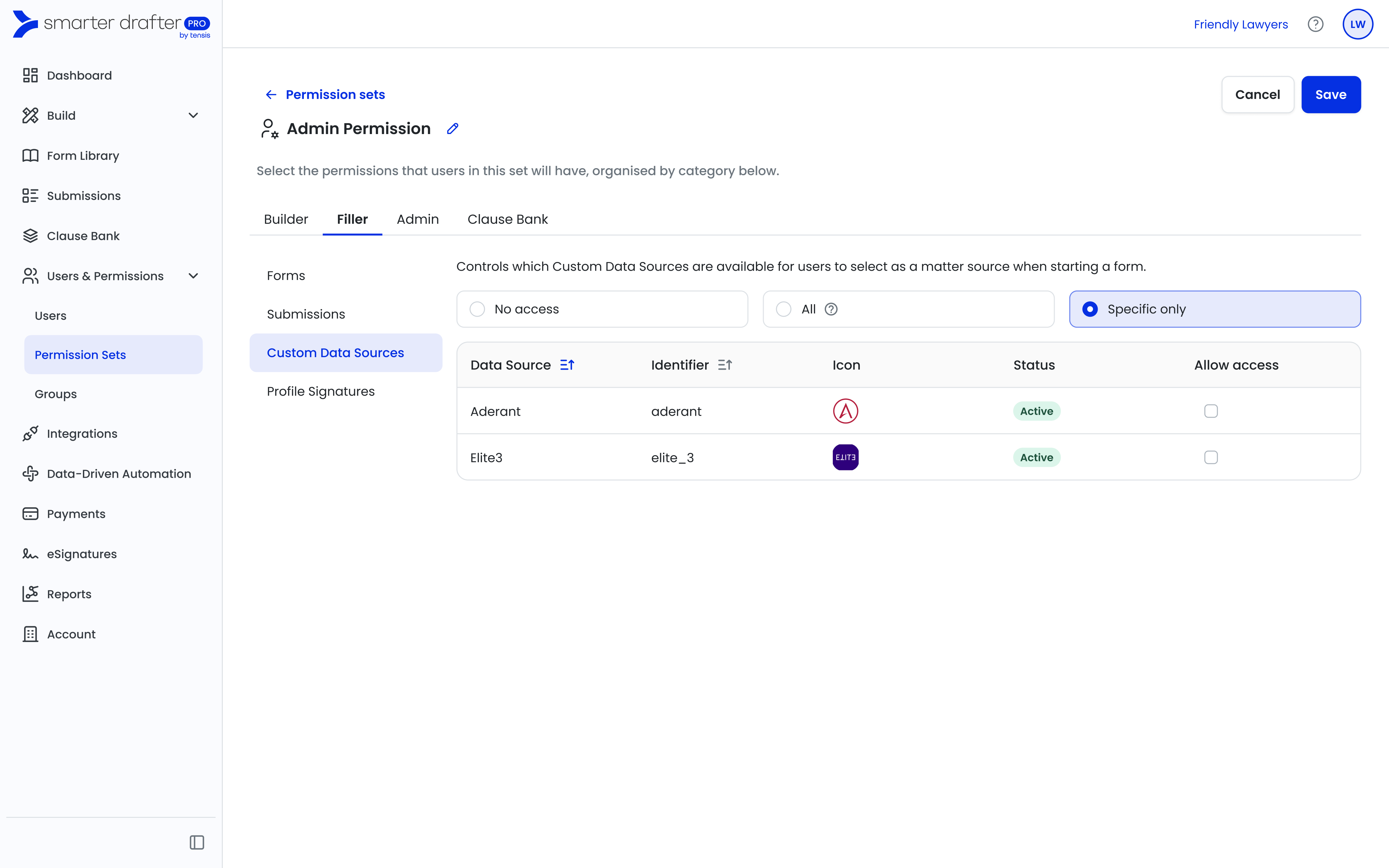
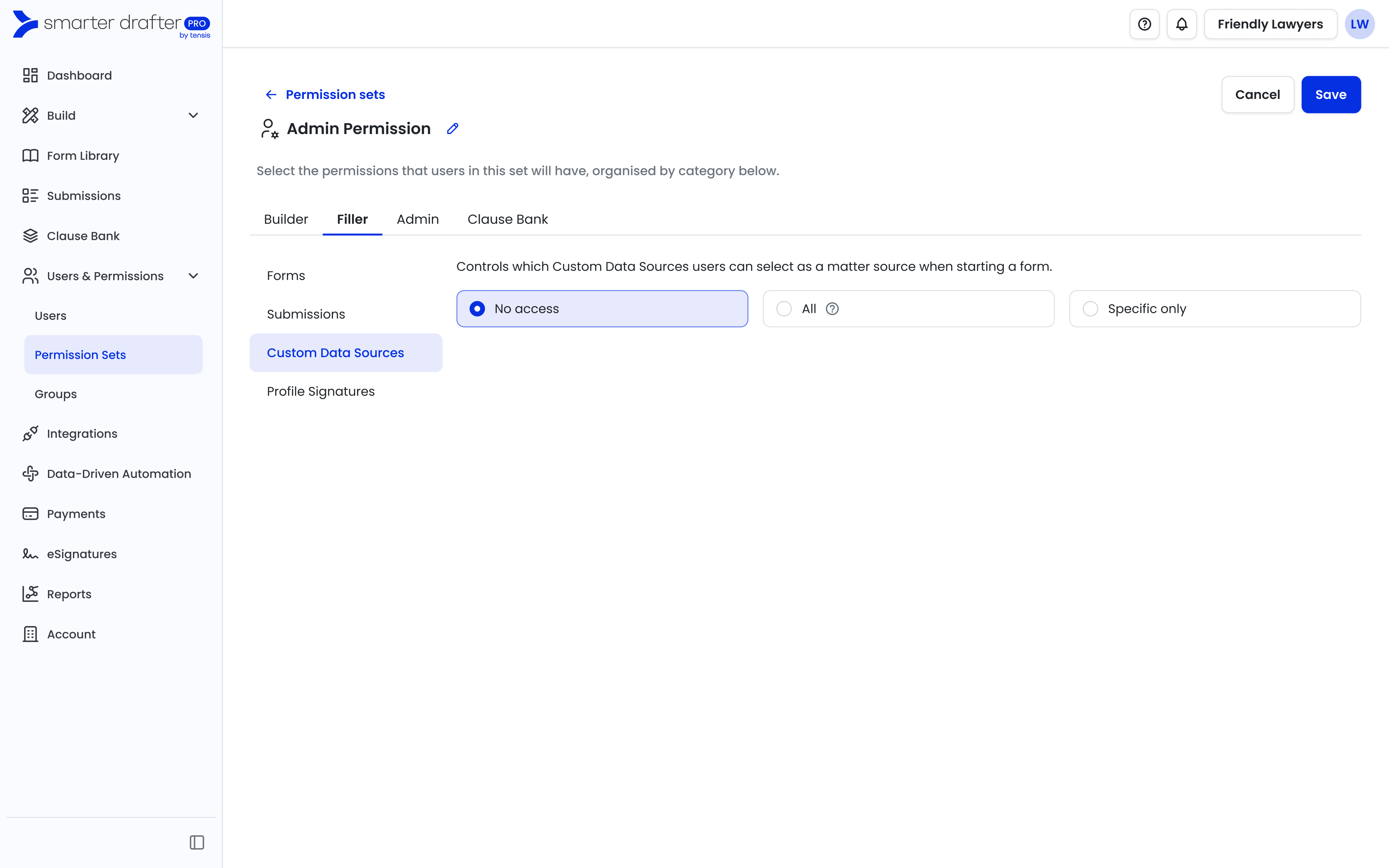
3. In the Filler tab, choose Custom Data Sources page to see options to give this specific permission set access to no custom data sources. Choose one of the following options:
-
No access: Users in this set cannot see or select any custom data sources. This is the default state if no sources are configured.
-
All: Users in this set can access every active Custom Data Source currently in the tenant, as well as any added in the future.
-
Specific only: This allows for granular control. When selected, a list of your active Data Sources will appear. This is the recommended setting for managing mixed environments.
4. Choose any of the options available. Once selected and saved, any users in the permission set will have their access updated for custom data sources.